How to Create a Client
Clients are the foundation of jobs, quotes and invoices in WorkNinja. When creating a client, you can choose between a Commercial Client and a Domestic Client, depending on the type of customer you are working with.
The main difference is how addresses are handled:
Commercial Clients can have multiple addresses assigned to them.
Domestic Clients can only have one address.
This guide explains how to create both types of client and how client information is used throughout Work Ninja.
Creating a New Client
To create a client, open the Clients area and select the option to create a new client.
You will then be asked to choose whether the client is:
Commercial
Domestic
Choose the option that best reflects the type of customer you are adding.
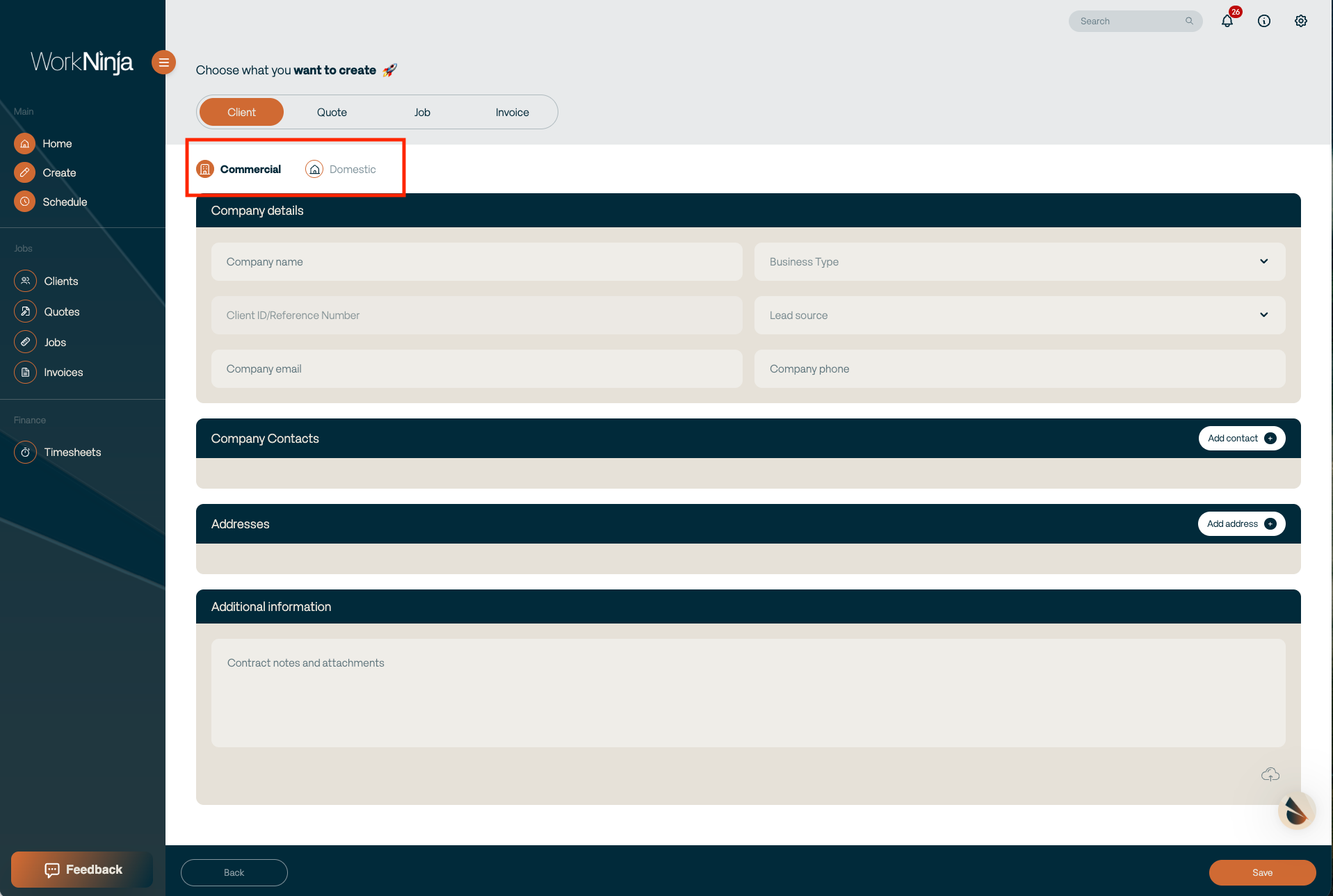
Creating a Commercial Client
Commercial clients are designed for businesses and organisations that may operate from one or multiple locations.
When creating a commercial client, you can enter key information including:
Company Name
Business Type
Client ID / Reference Number
Lead Source
Company Email Address
Company Phone Number
The client reference number is automatically generated by Work Ninja.
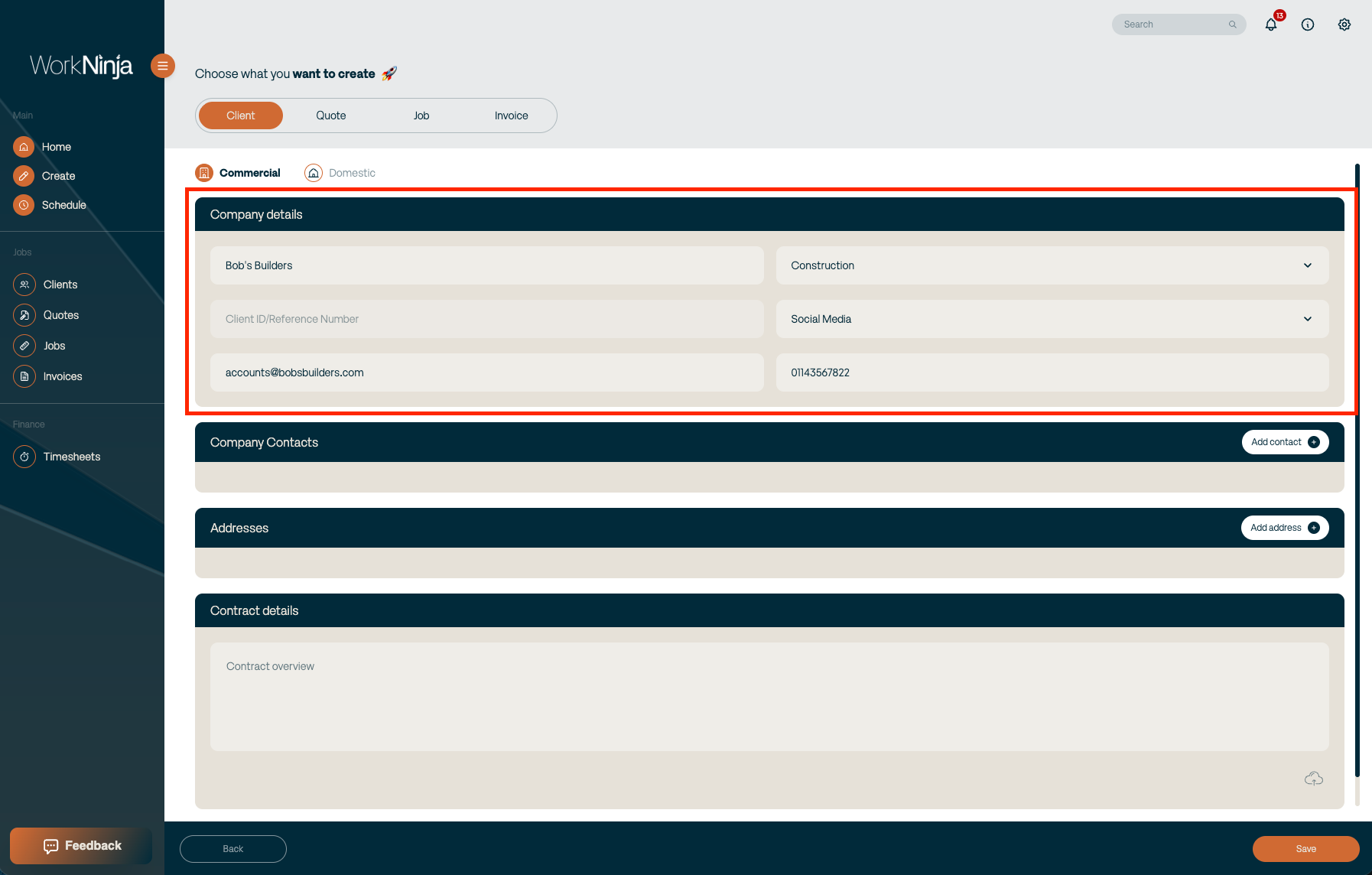
The company email address and phone number should normally be used for the main contact details associated with the client.
Adding Addresses to a Commercial Client
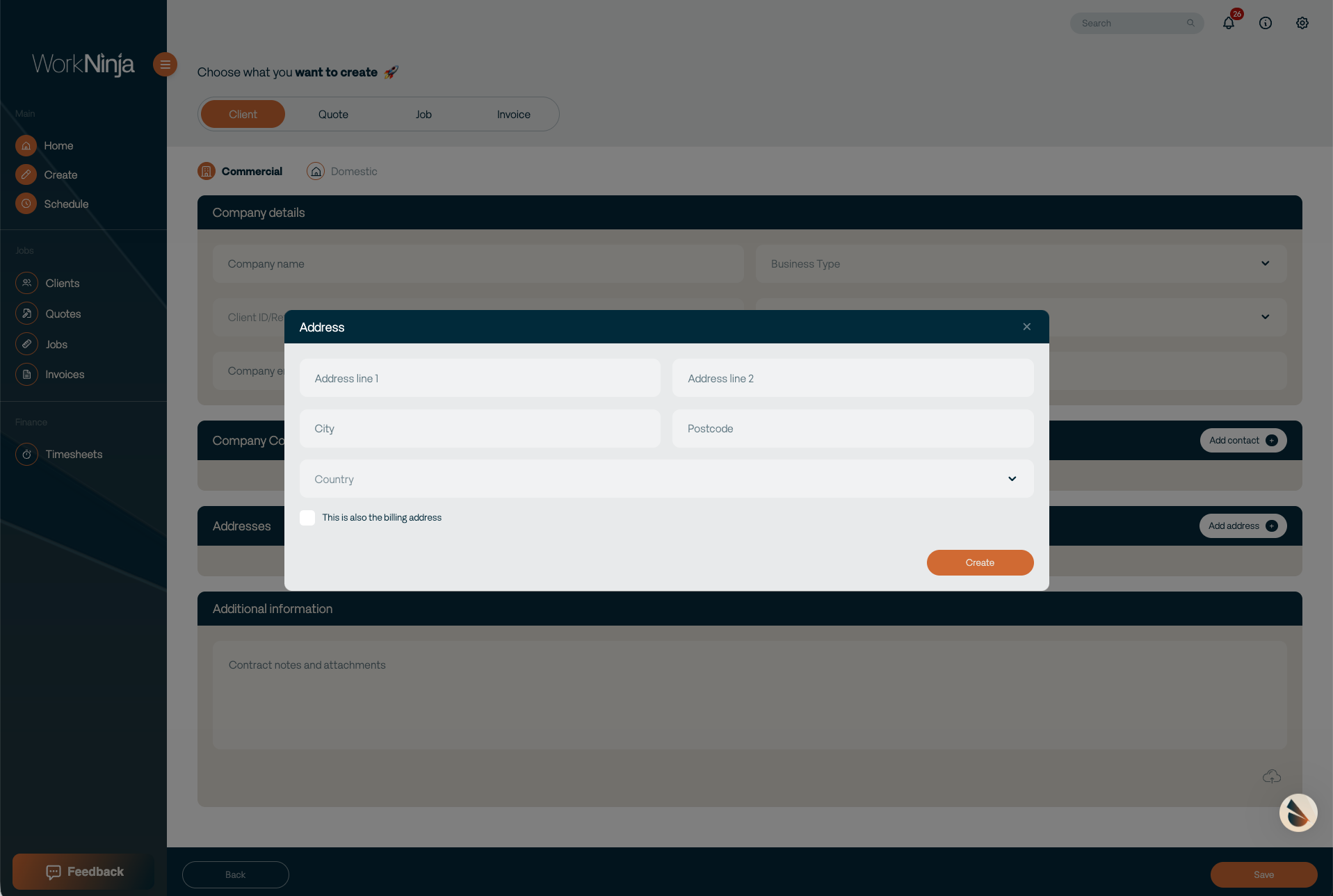
Commercial clients can have one or multiple addresses.
This is particularly useful when working with customers that have several branches, offices, properties or service locations.
You can add as many addresses as required to the client record.
These addresses can later be selected when creating jobs for the client, allowing work to be assigned to the correct location.
Adding Contacts to a Commercial Client
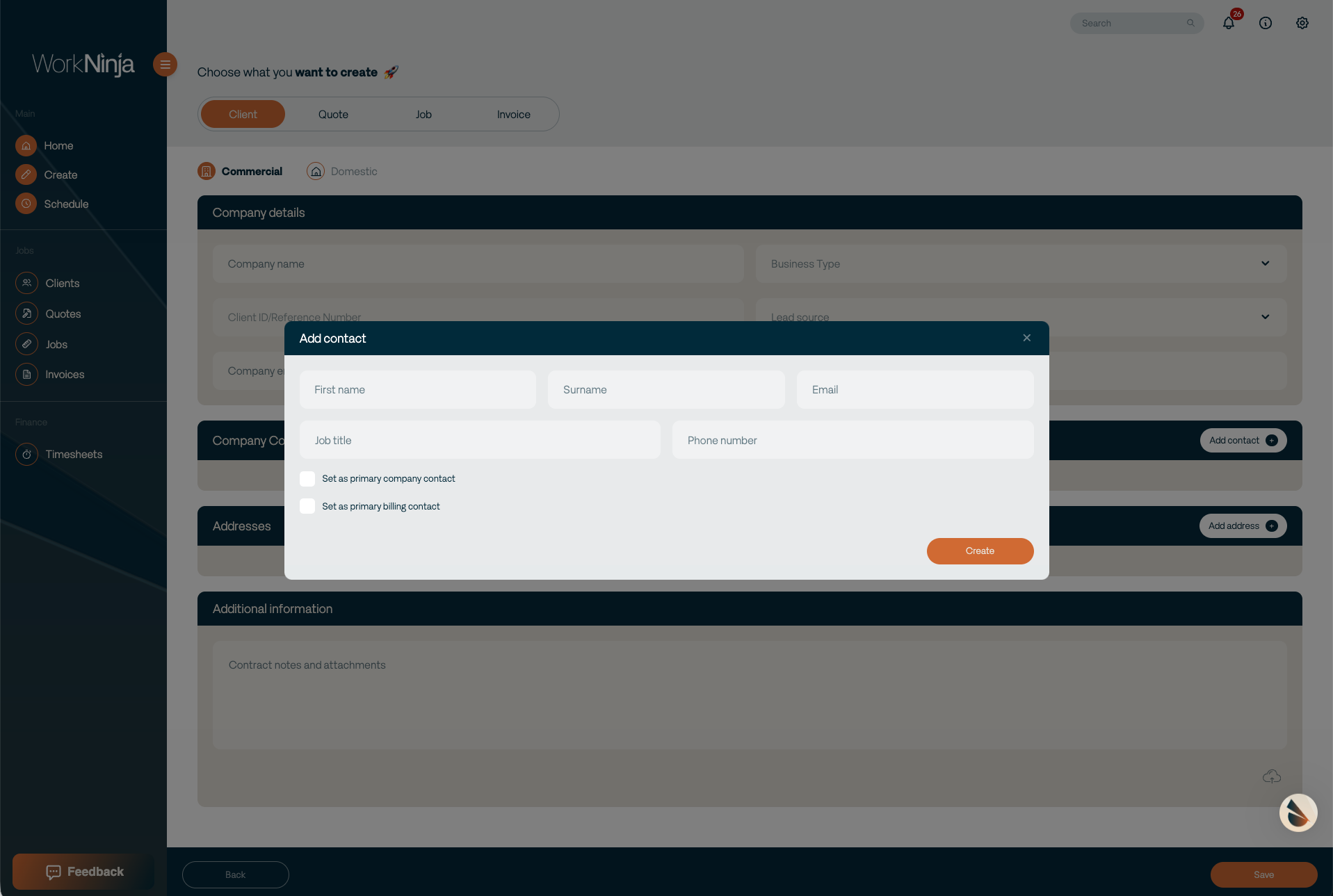
You can also create multiple contacts against a commercial client.
This allows you to store the details of different people within the organisation rather than relying on a single contact for every location or job.
For example, a commercial client may have:
A main office contact.
A site manager.
An accounts contact.
Different contacts for individual branches or properties.
There is no requirement to limit a commercial client to a single contact.
Assigning a Contact to an Address
Once you have created both addresses and contacts, you can assign a contact to a particular address.
This makes them an Address Contact.
Address contacts are important because Work Ninja can use this information when managing jobs associated with that location, including relevant contact details and notifications.
For example, if a commercial customer has three different sites, each site can have its own contact assigned to it.
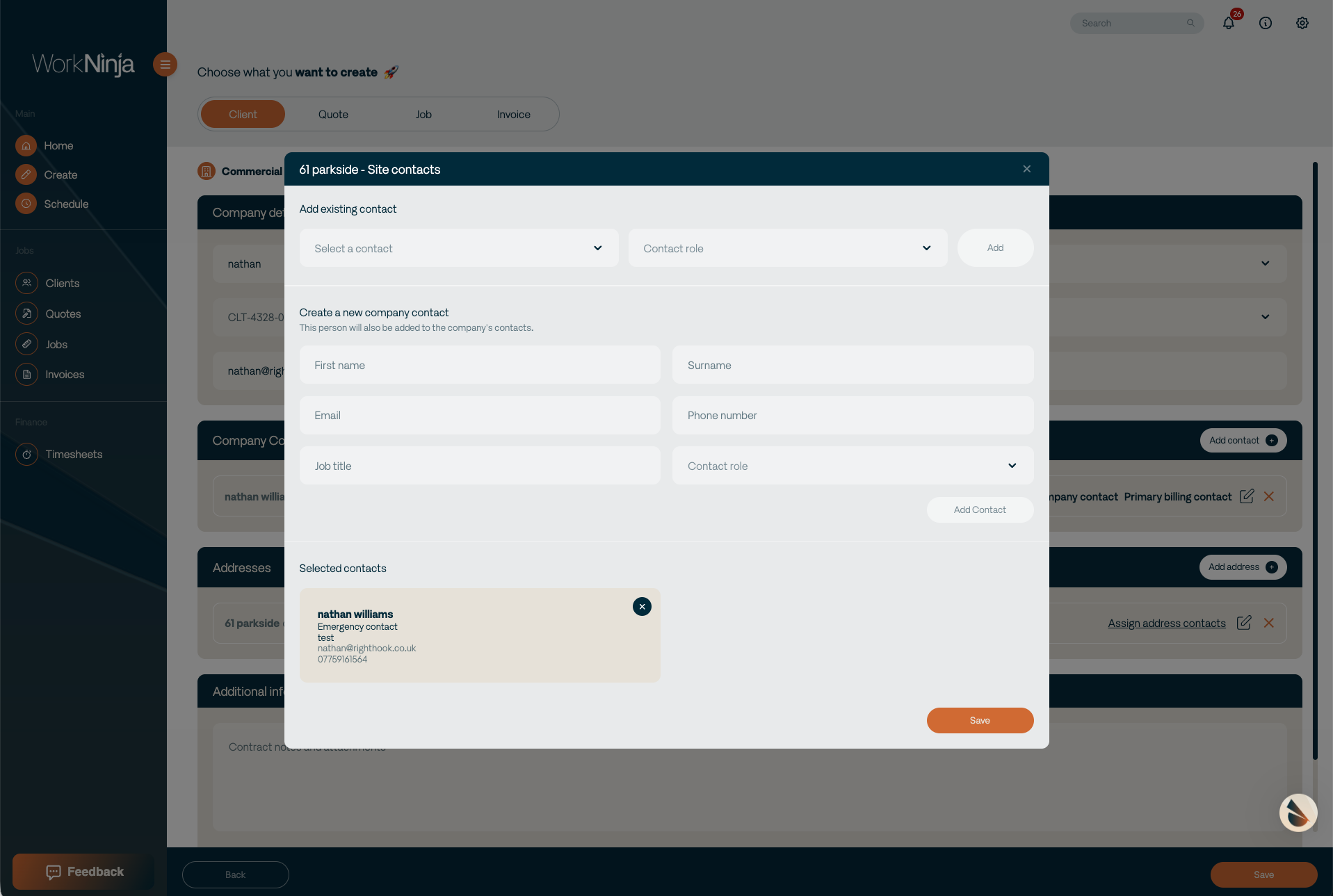
Keeping address contacts up to date helps ensure that the correct person is associated with work taking place at each location.
Creating a Domestic Client
Domestic clients are designed for individual customers where the customer and the service location are generally associated with a single property.
Unlike commercial clients, a domestic client can only have one address.
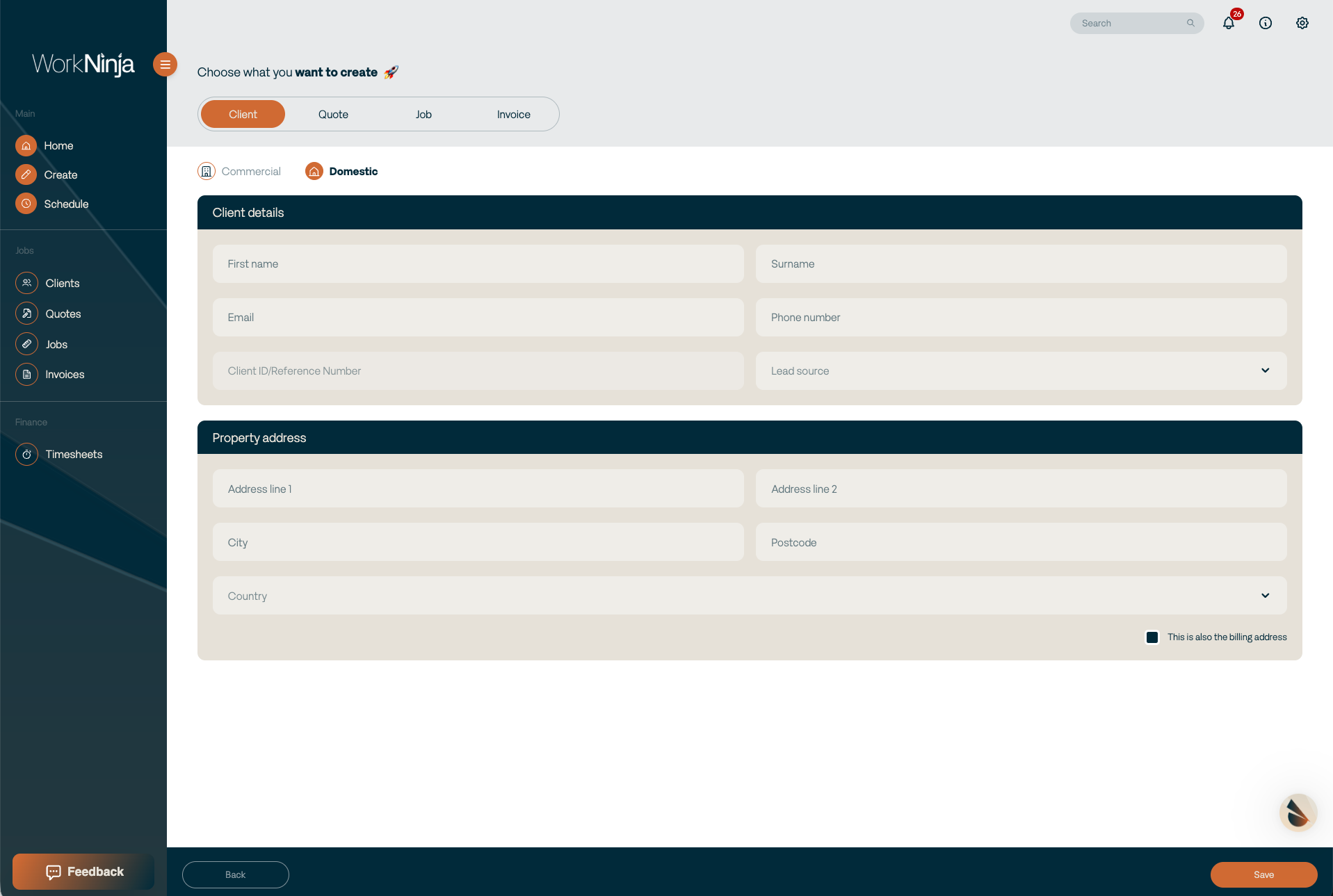
Complete the customer's information and add the address associated with them.
Once saved, this address will be used when creating work for that domestic client.
Saving the Client
Once you have entered the required client information, save the client.
You will then be taken to the Client View page.
The Client View page acts as the central record for that customer and brings together the information and activity associated with them.
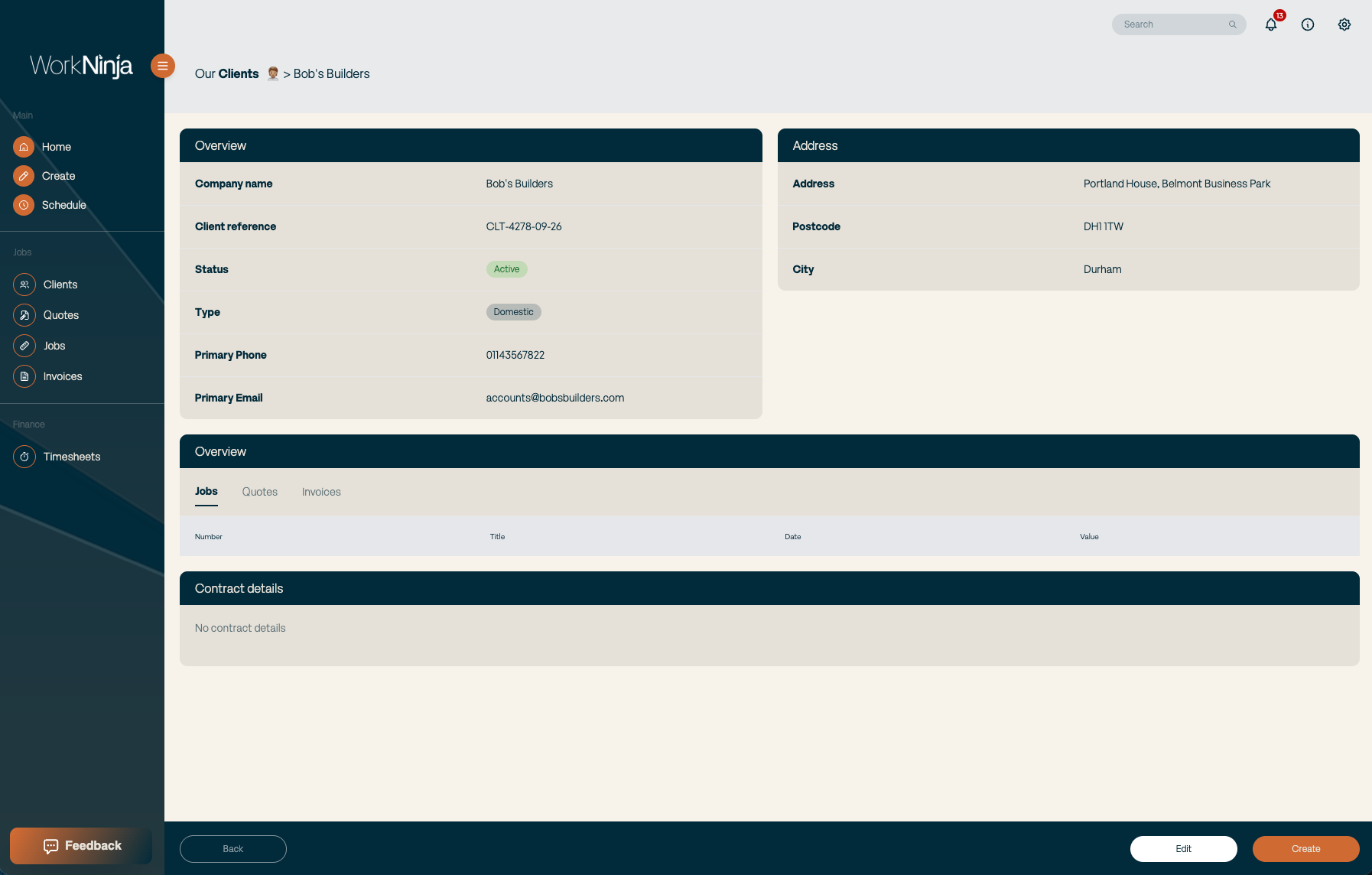
Viewing a Client
From the Client View page, you can see the information that has been recorded against the customer, including their contact and address information.
You can also view records associated with the client, including:
Jobs
Quotes
Invoices
This gives you a complete overview of the customer's history within Work Ninja without needing to search through each area individually.
Creating Work Directly from a Client
The Client View page can also be used to quickly create new work for the customer.
From the client record, you can create:
A Job
A Quote
An Invoice
Creating these directly from the client page makes the process quicker because you are already working from the correct customer record.
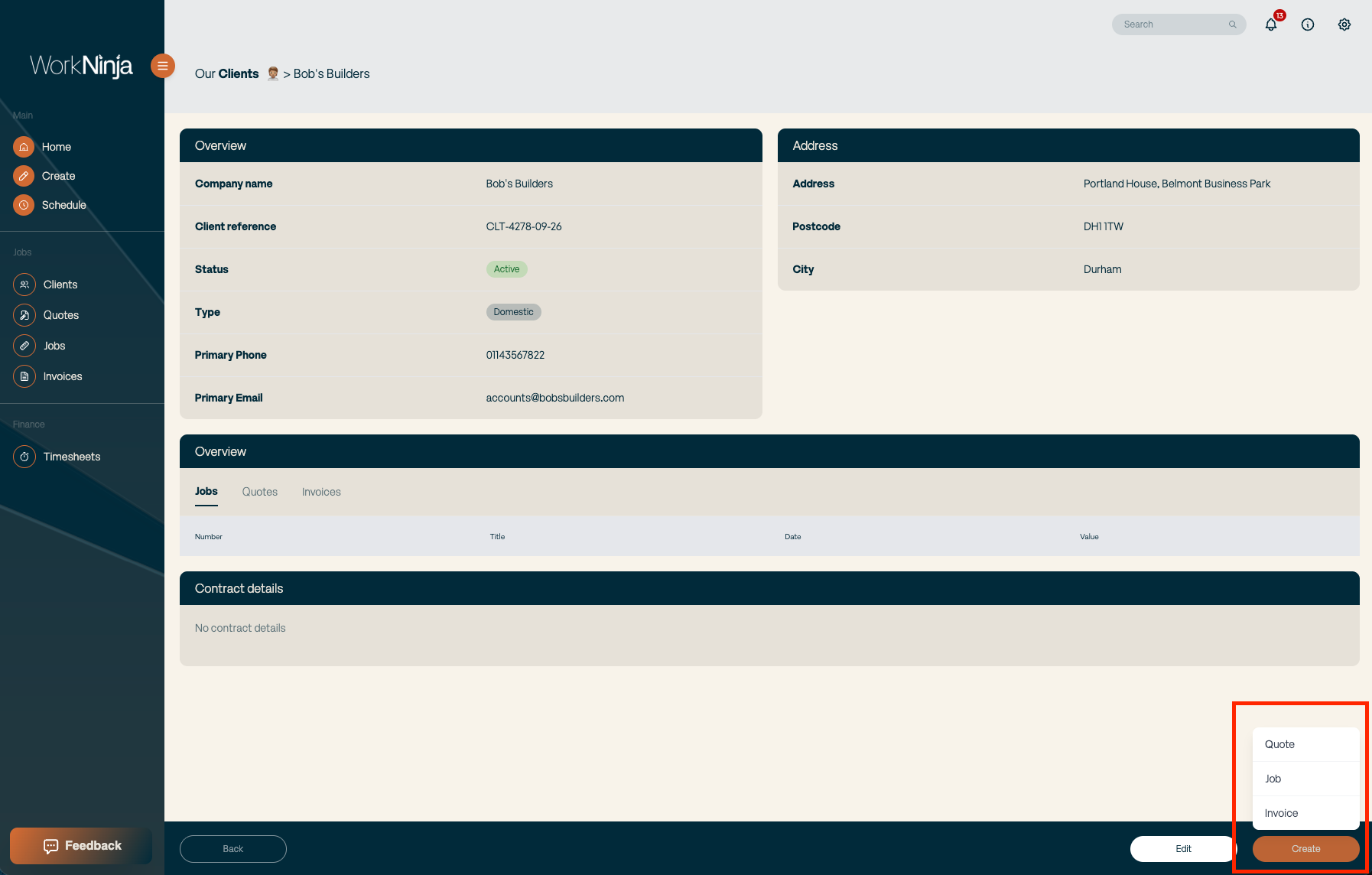
Once created, the new job, quote or invoice will remain associated with that client and will appear within their client history.
Commercial vs Domestic Clients
The most important distinction between the two client types is how addresses are managed.
Use a Commercial Client where you need to manage multiple sites, properties or business locations.
Use a Domestic Client where the customer is associated with a single residential address.
Important
For commercial customers with multiple locations, assigning the correct contacts to each address is recommended. Work Ninja can then use the appropriate contact information when managing jobs and communications relating to that location.
Was this helpful?
Still need help? Ask the team