How to Schedule a Job Visit
Learn how to schedule job visits in WorkNinja using the Create Job page, an existing job or the drag-and-drop scheduler.
In WorkNinja, every job contains at least one visit. Visits are the individual appointments that appear on your team's schedule, and each visit can be assigned to a date, time and team member.
There are three ways to schedule a visit.
1. Schedule a Visit When Creating a Job
The quickest way to schedule a new job is during the job creation process.
Navigate to Create Job.
Choose whether you're creating a Single Job or a Recurring Job.
Complete the relevant job information.
Enter the visit Duration, Start Date and Start Time.
Select the Team Members you wish to assign.
Once you've completed the required fields, click Schedule Now.
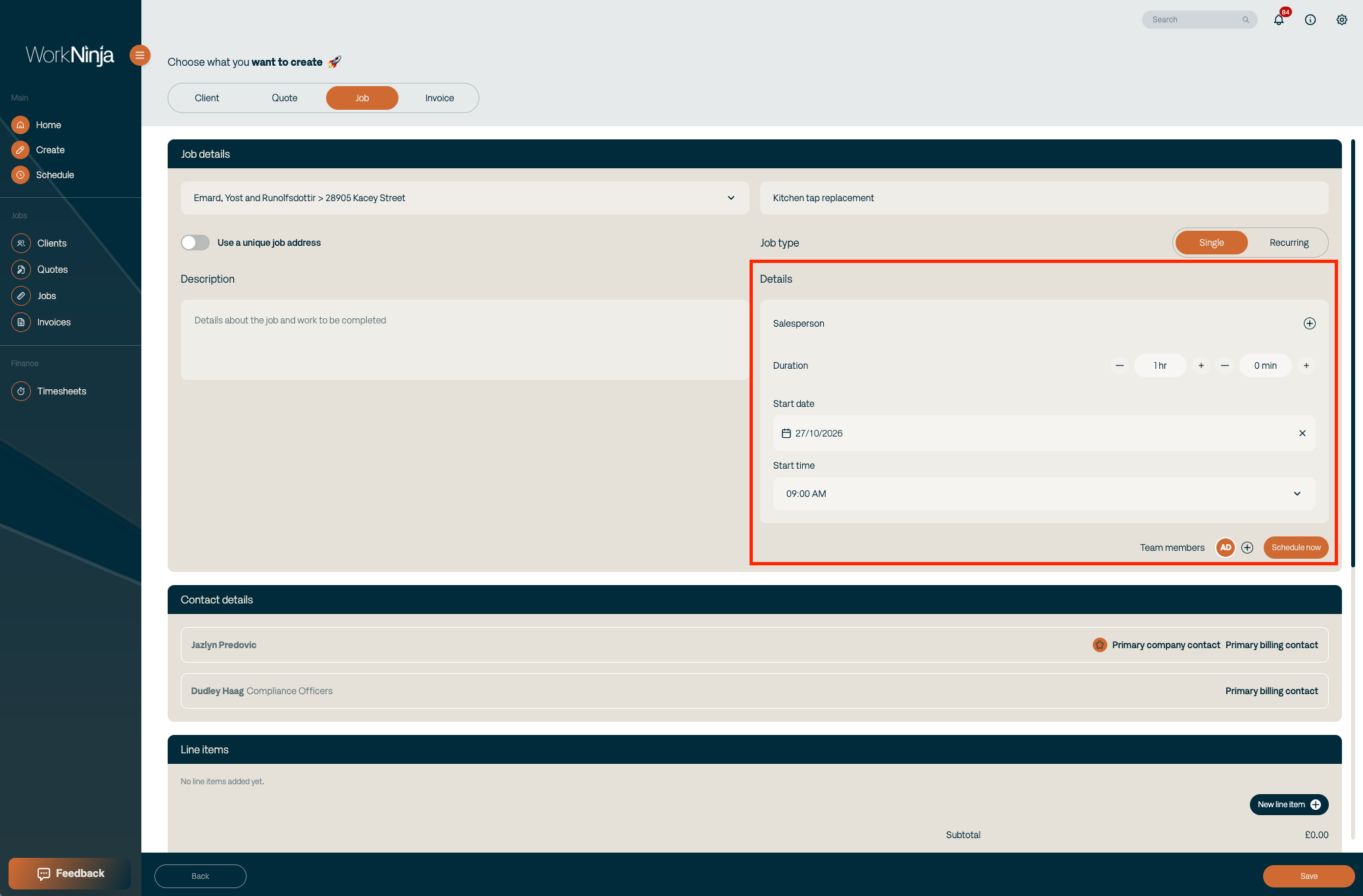
Your visit will be scheduled using the information you've entered.
2. Schedule a Visit from an Existing Job
If you've already created a job without scheduling it, you can schedule the visit directly from the job page.
Open the relevant job using View Job.
Scroll down to the Visits table.
Locate the visit you wish to schedule.
Click Schedule Now.
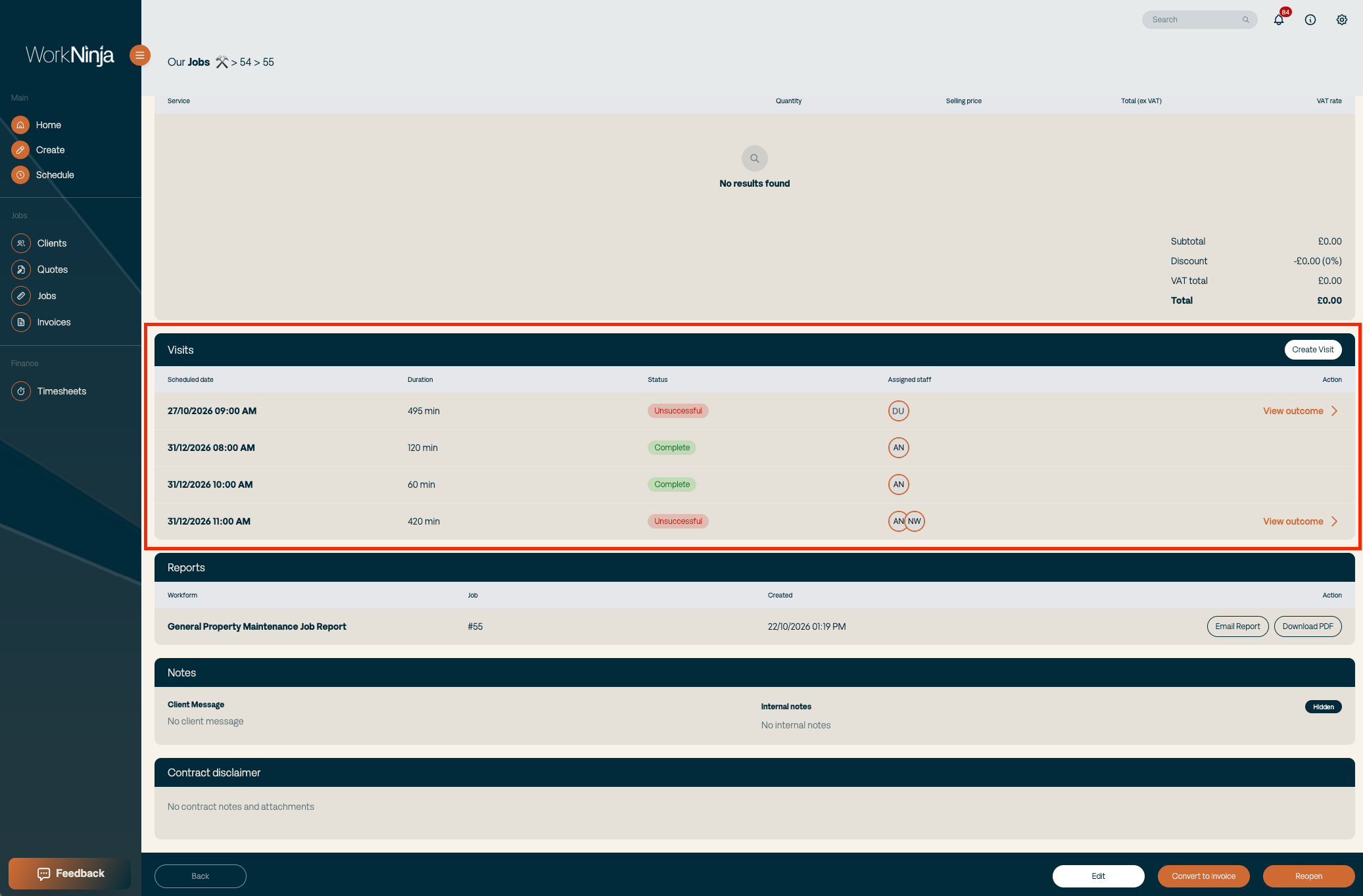
You'll be taken to the scheduler, where the relevant visit information will already be populated.
You can then drag and drop the visit onto the calendar at your preferred time and against the appropriate team member.
3. Schedule a Visit Using the Scheduler
You can also schedule visits directly from the WorkNinja calendar.
Navigate to Schedule.
Locate the Unscheduled Visits section on the left-hand side.
Find the visit you wish to schedule.
Drag the visit card onto the calendar.
Drop it against the appropriate team member at your chosen date and time.
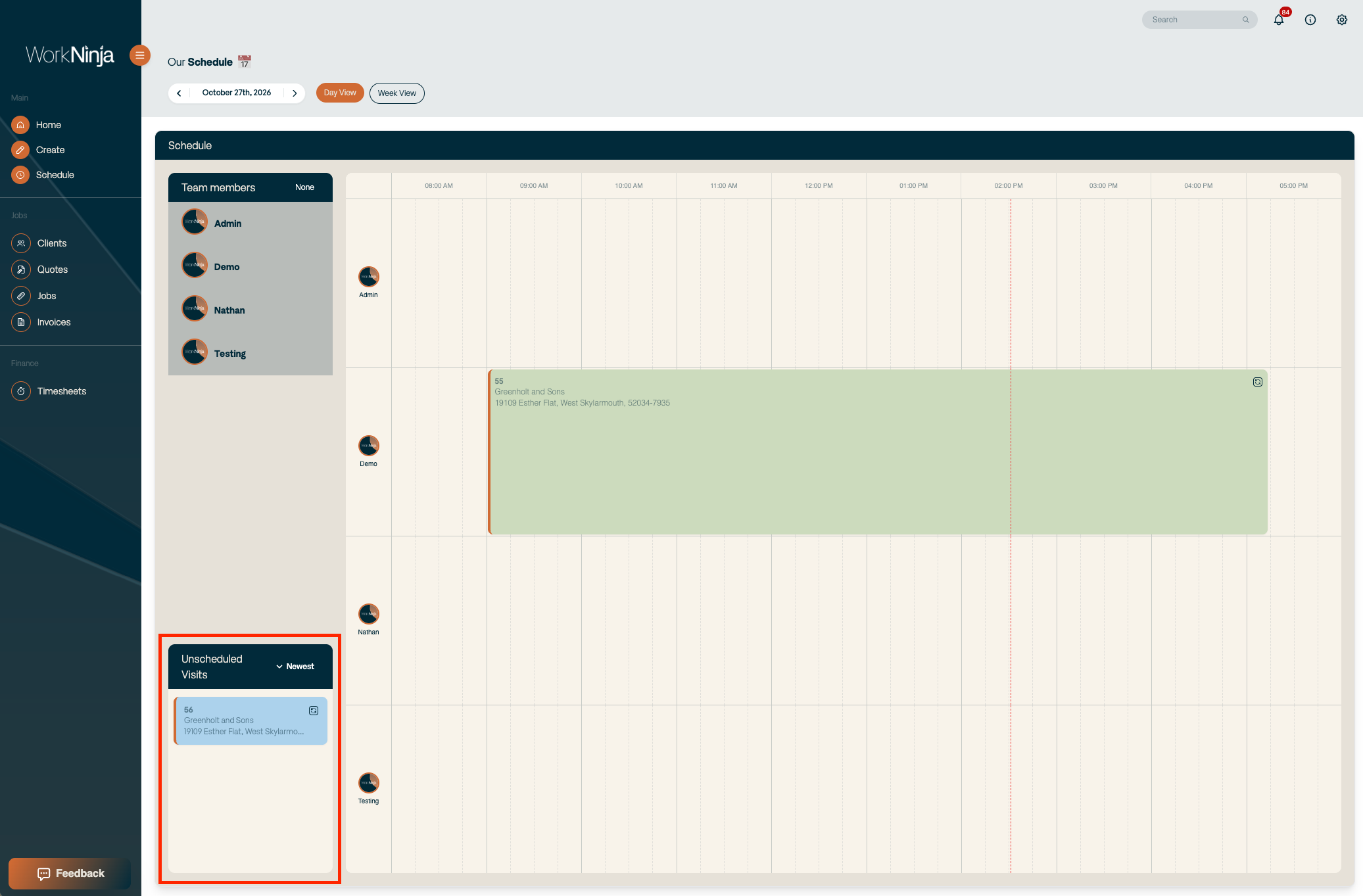
The visit will now appear on the calendar.
You can adjust the visit's scheduled time or duration using the calendar controls.
Important: WorkNinja prevents conflicting appointments from being scheduled for the same team member. If a visit overlaps an existing appointment, you'll be notified of the conflict and may be offered the option to split the existing visit.
Can a Job Have Multiple Visits?
Yes. Every job starts with at least one visit, but you can create additional visits whenever required.
To add another visit, open the job and select Create Visit from the Visits table.
Each visit can then be scheduled individually.
Was this helpful?
Still need help? Ask the team