How to Create and Manage Job Visits
Learn how visits work in WorkNinja, how to add additional visits to a job and how to manage their scheduling.
A job in WorkNinja can contain one or multiple visits. Each visit represents an individual appointment and can be scheduled independently.
This is particularly useful when a job requires multiple site visits, follow-up appointments or additional work.
1. Understanding Jobs and Visits
When you create a new job in WorkNinja, at least one visit is automatically created.
For example, a job to repair a heating system may require:
Visit 1: Initial inspection and diagnosis.
Visit 2: Return appointment to install replacement parts.
Visit 3: Final testing and inspection.
Rather than creating three separate jobs, you can manage all three visits under one job.
2. Create an Additional Visit
To add another visit to an existing job:
Open the relevant job using View Job.
Scroll down to the Visits table.
Click Create Visit.
A new visit will be added to the job.
Locate the new visit in the table.
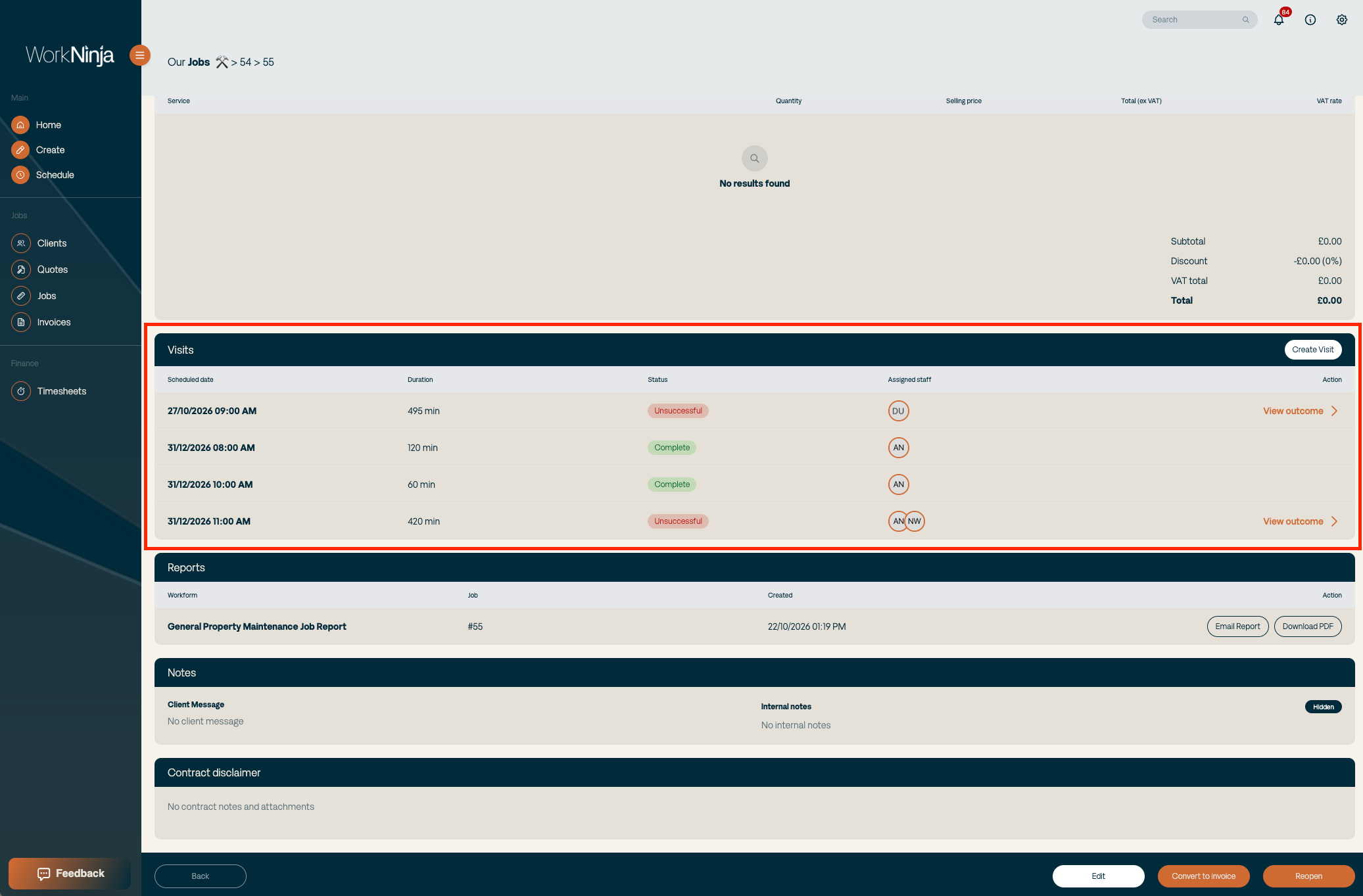
You can now schedule the additional visit independently.
3. Schedule an Unscheduled Visit
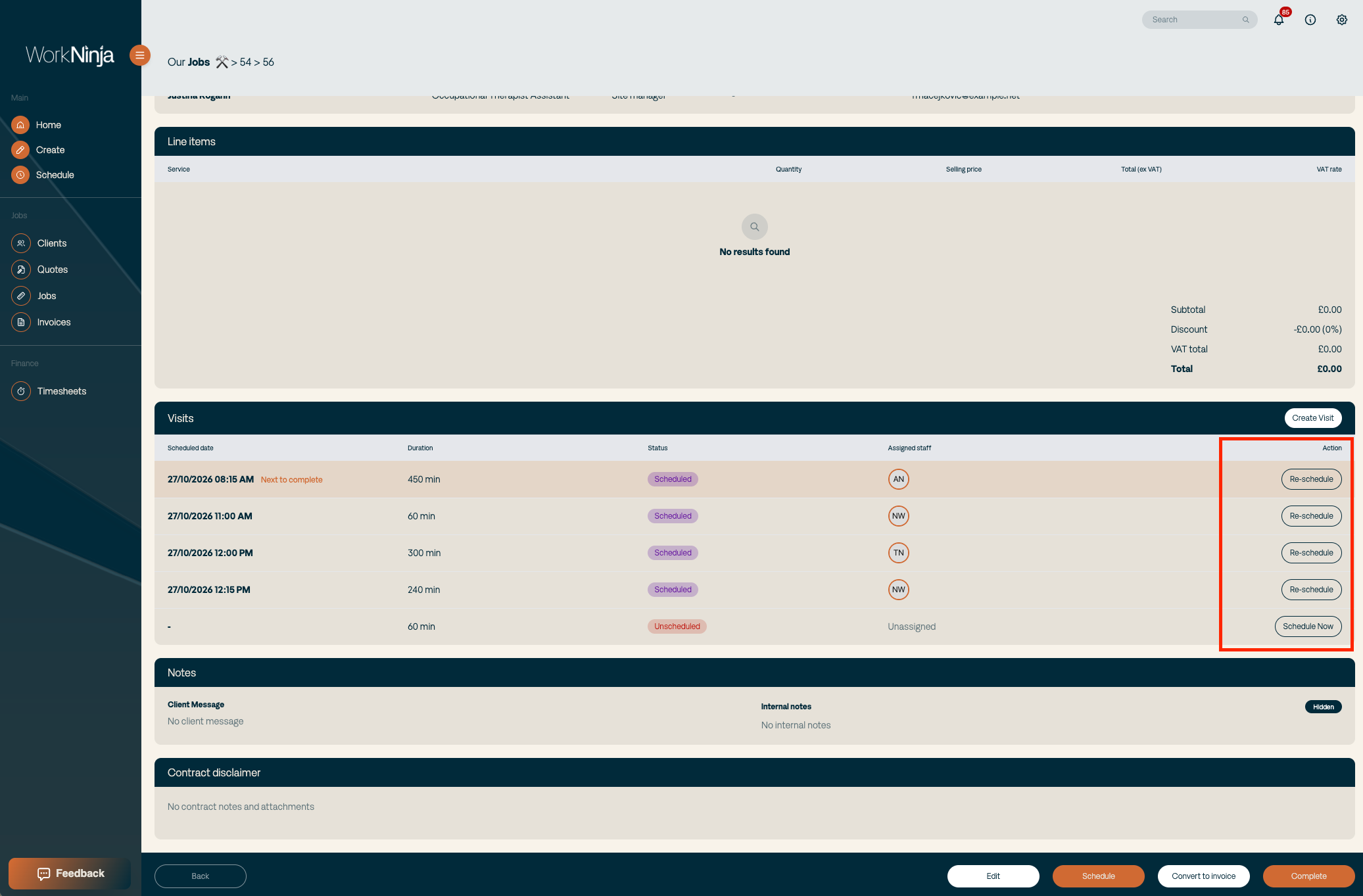
Visits that haven't yet been scheduled will display a Schedule Now option.
To schedule one:
Find the visit in the Visits table.
Click Schedule Now.
You'll be taken to the scheduler with the relevant details already populated.
Drag and drop the visit onto your preferred time and team member.
4. Reschedule an Existing Visit
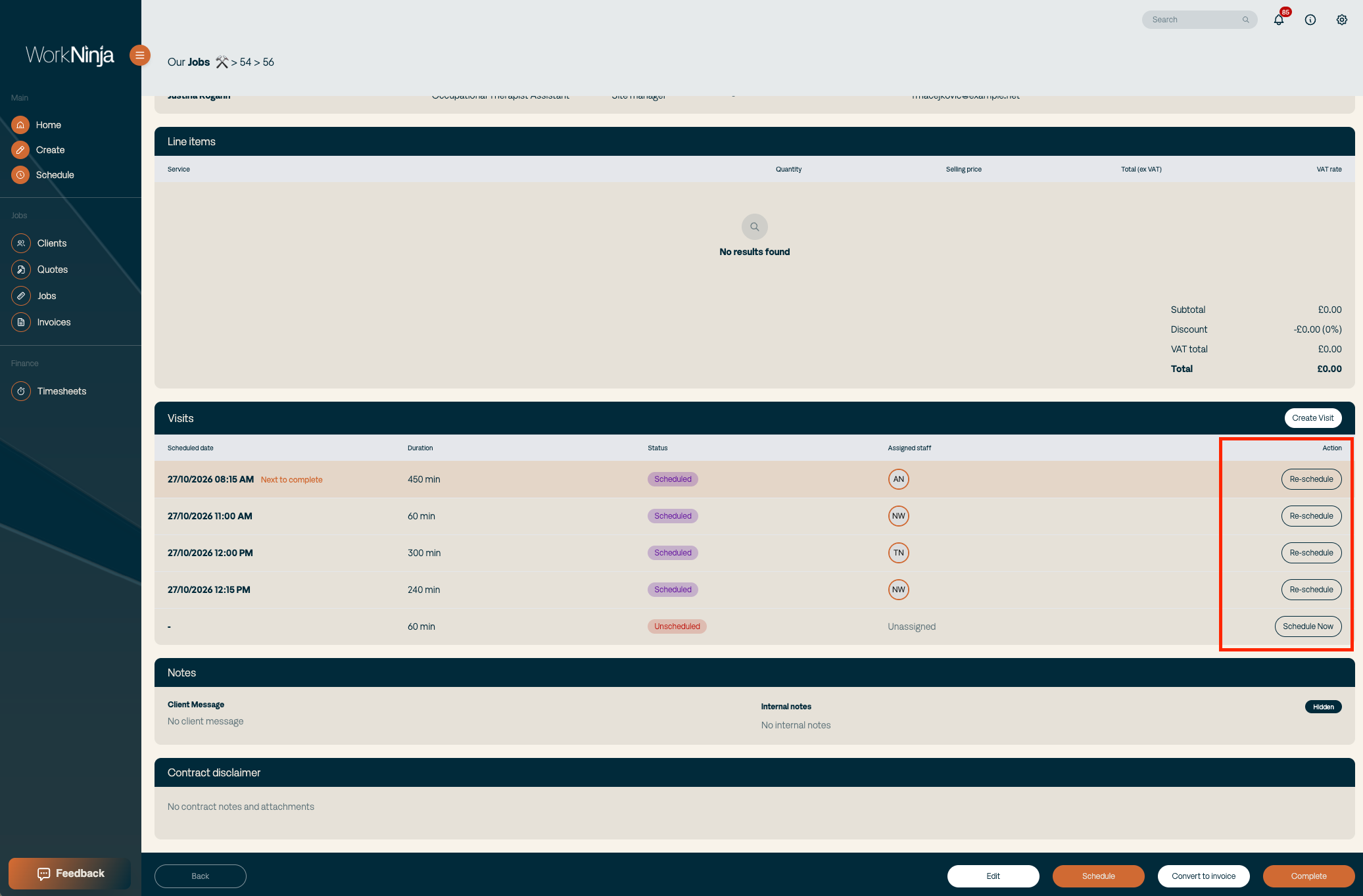
If the visit is already scheduled, the Visits table will display Reschedule instead.
Click Reschedule to open the scheduler and change the appointment.
You can adjust its scheduled date, time or assigned technician.
5. Managing Multiple Visits
All visits belonging to a job can be viewed from its Visits table.
This allows you to manage individual appointments without creating additional jobs for the same piece of work.
Important: All required visits must be completed before a job is considered complete, subject to the job completion options available when recording an unsuccessful final visit.
Was this helpful?
Still need help? Ask the team