How to Add a Staff Member
Staff Management allows administrators to add employees and other users who need access to Work Ninja. When adding a staff member, you can configure their personal details, role, working capacity and schedule.
Opening Staff Management
Go to the Staff Management area of the Work Ninja dashboard.
At the top of the page, you will be able to see information about your current staff usage, including:
Total staff
Seats currently in use
Seats still available
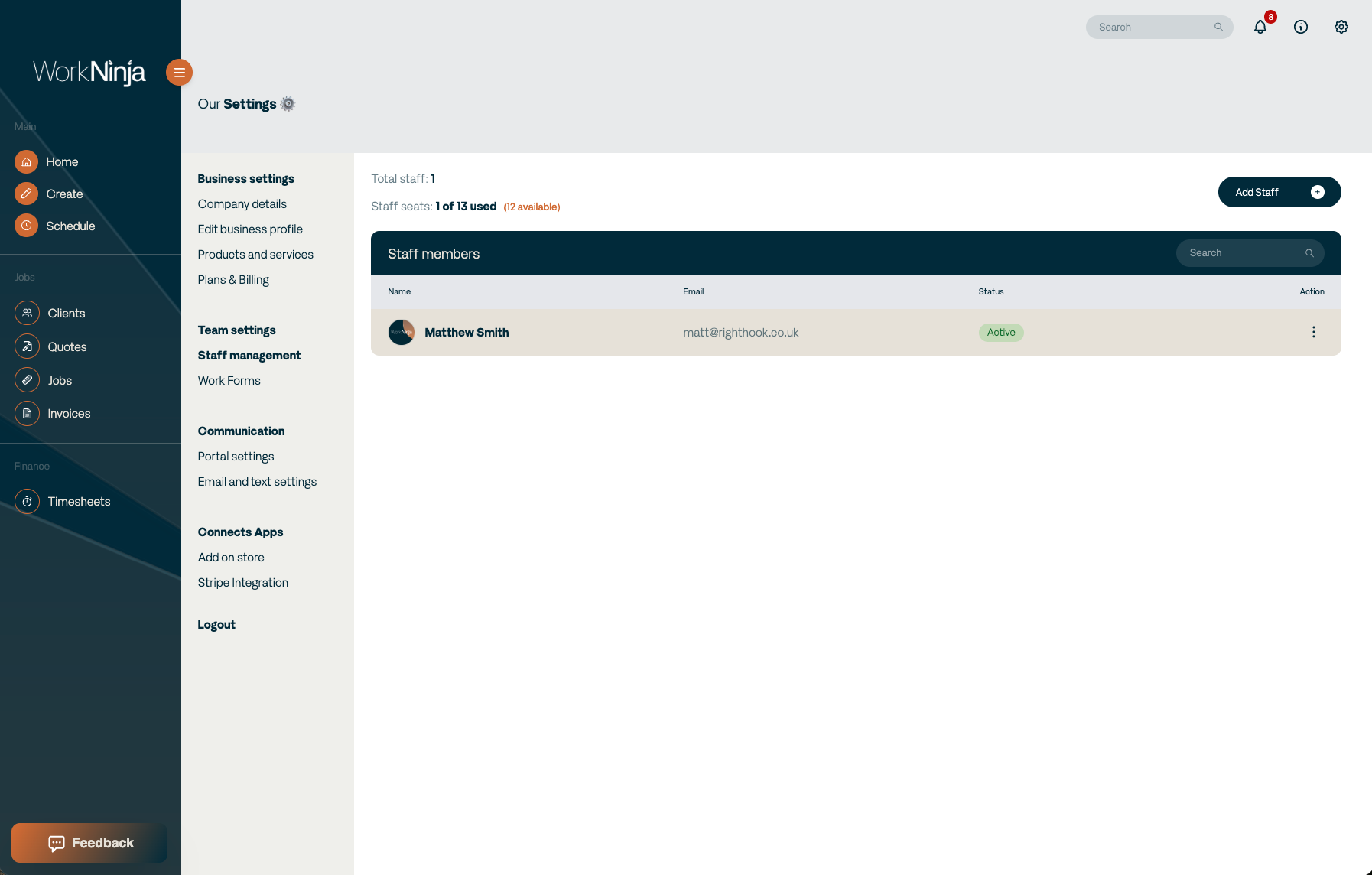
This allows you to check whether you have an available seat before creating another user.
Adding a Staff Member
Select Add Staff on the right-hand side of the page.
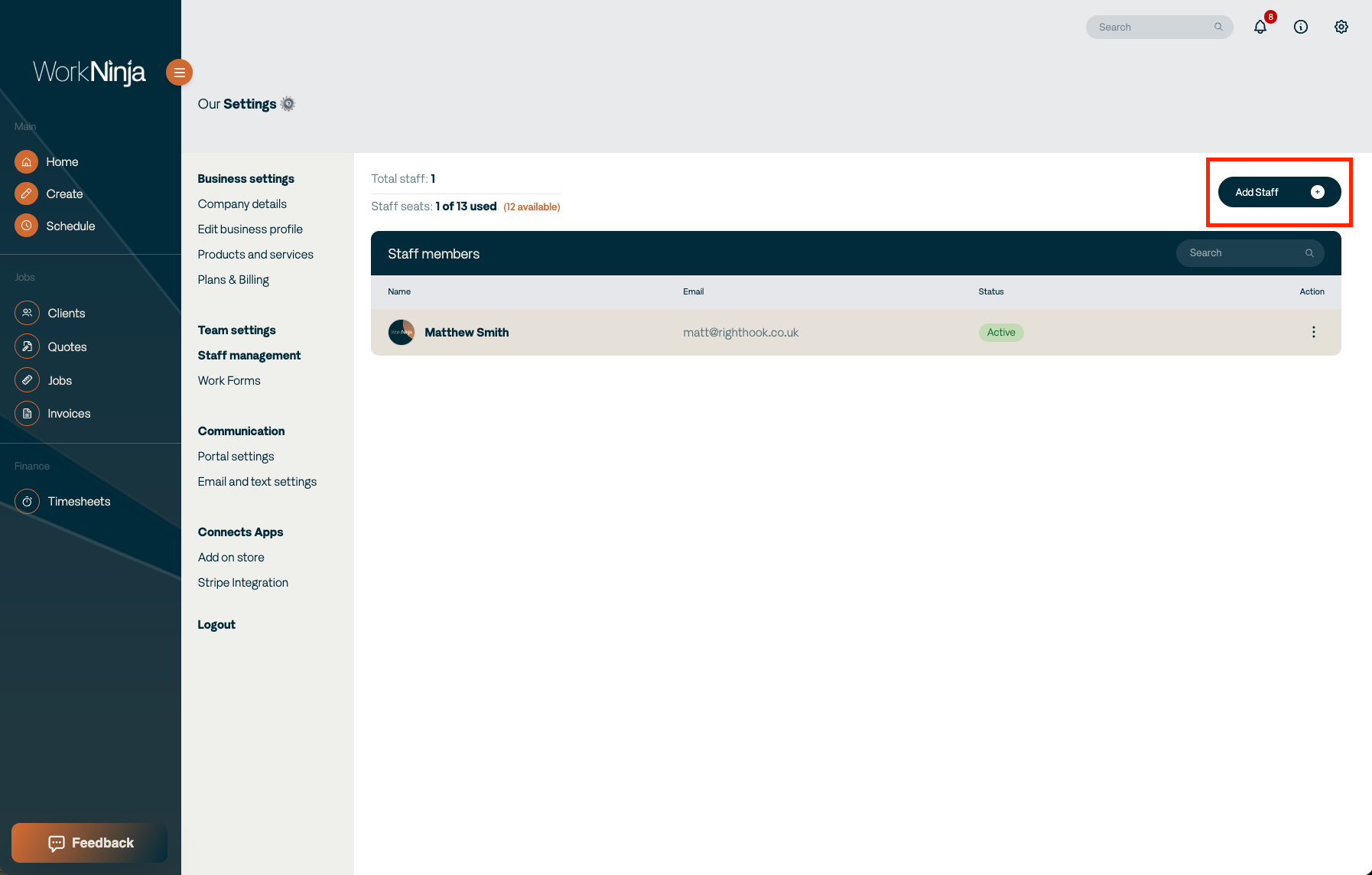
You can then enter the staff member's information.
Depending on your setup, this can include:
First name
Last name
Email address
Phone number
Address
Labour cost
Capacity
Role
Working schedule
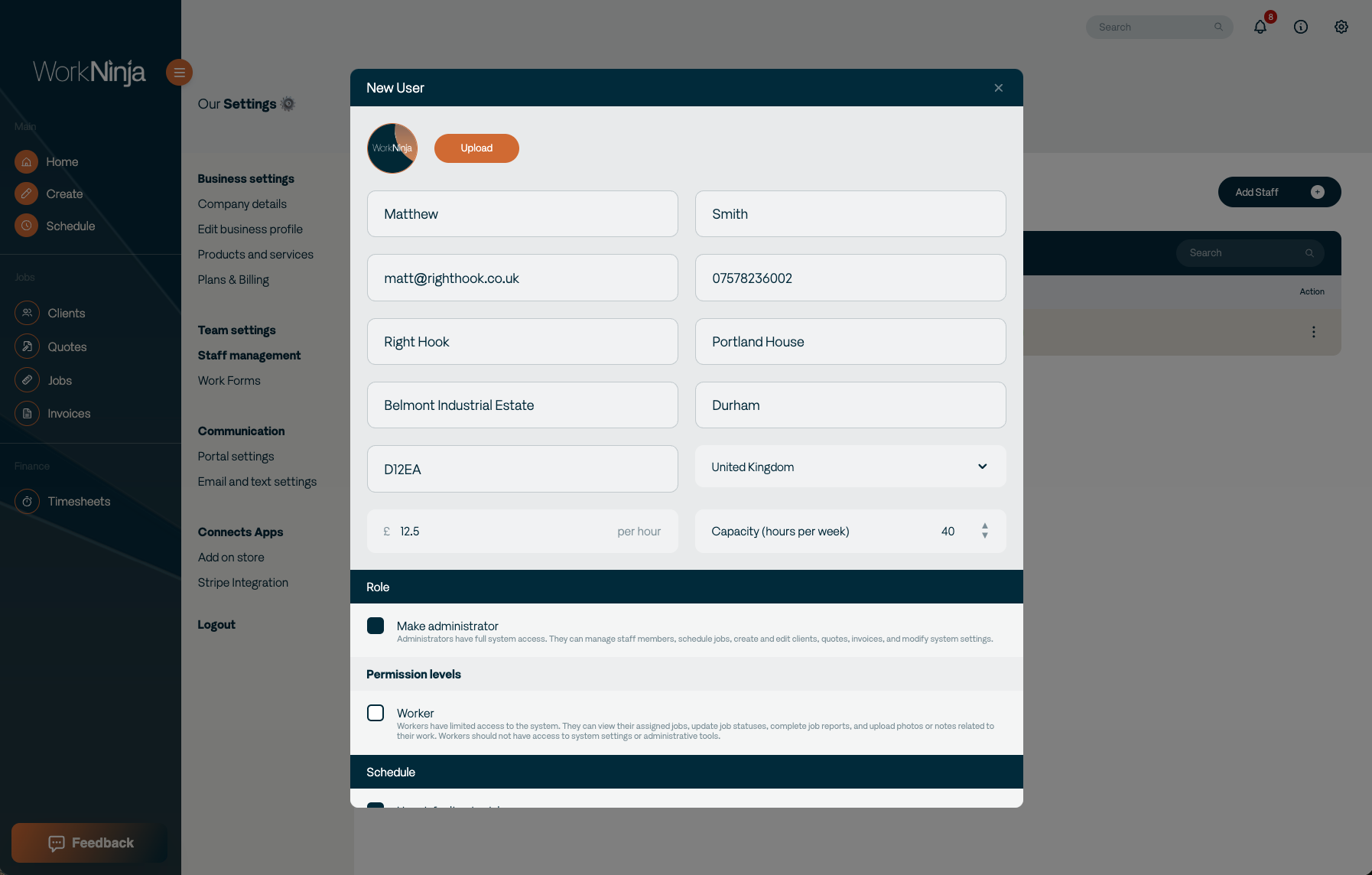
Setting the Staff Member's Role
Select the appropriate Role for the user.
The role determines the type of access and functionality they have within Work Ninja.
Make sure you choose a role that reflects what the team member needs to do within the system.
Configuring Their Schedule
Staff members can follow your default business schedule or have their own individual working schedule.
If the employee does not follow the default schedule, configure their availability when creating or editing their staff record.
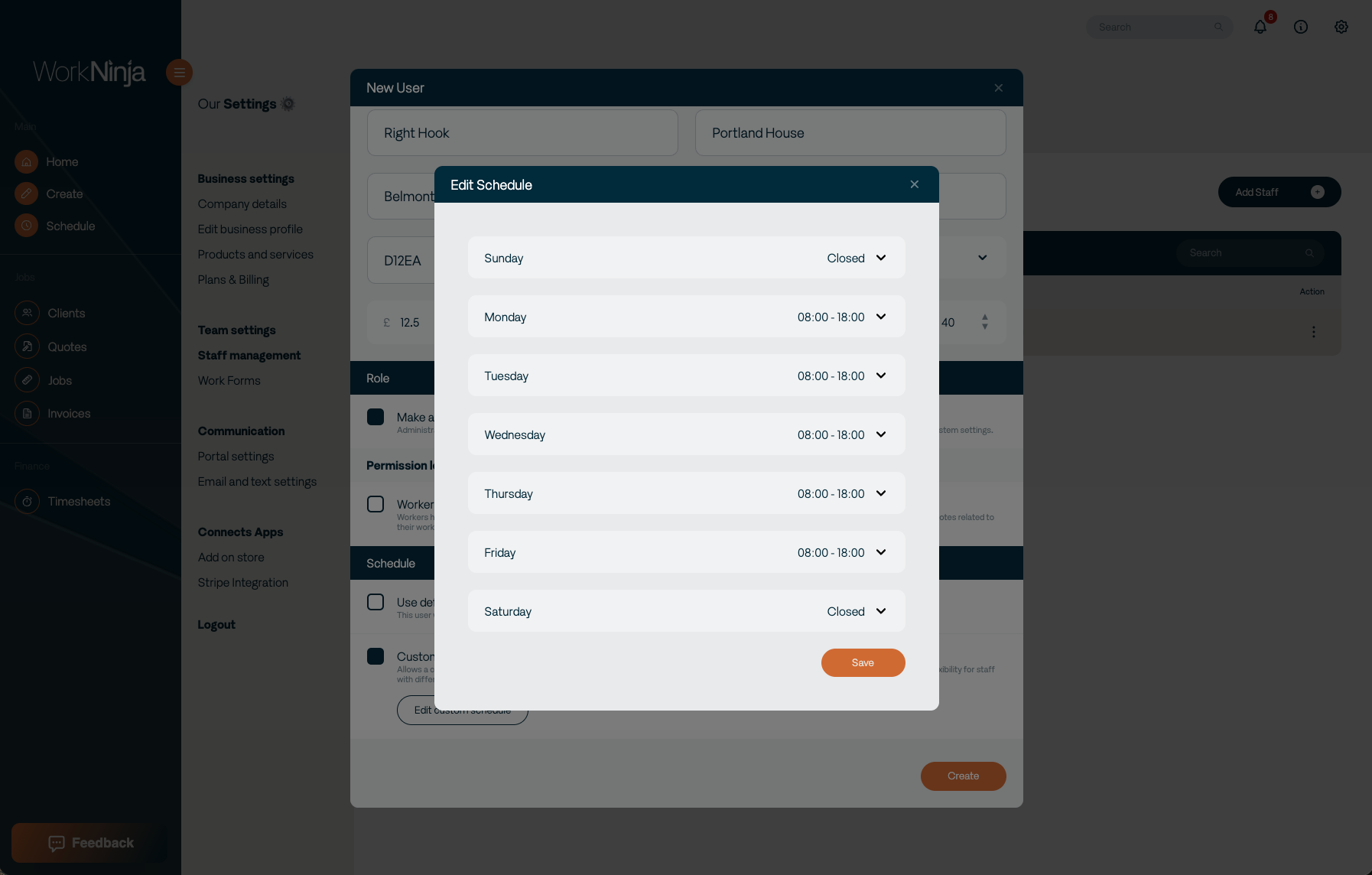
This information can then be used when managing their availability and scheduling work.
Creating the User
Once all of the required information has been entered, select Create.
Work Ninja will create the staff account and automatically send the new user an email containing information about accessing their account.
When they log in for the first time, they will be prompted to change their password.
Important
Before creating a staff member, check that their email address is correct. Their account invitation and login information will be sent to this address.
You should also check that you have an available staff seat before adding another user.
Was this helpful?
Still need help? Ask the team