How to Complete a Job and Record Unsuccessful Visits
Learn how WorkNinja manages visit completion, how unsuccessful visits are recorded and how to decide whether a job should remain open.
In WorkNinja, jobs and visits have separate completion processes.
A job can contain multiple visits, and all visits must be completed before the job can be marked as complete.
Visit completion is managed through the WorkNinja mobile app and dashboard.
1. Understanding Job and Visit Completion
Each job contains at least one visit.
If a job has multiple visits, the job will remain open while outstanding visits still need to be completed.
Once all the visits have been completed, the job can be marked as complete.
2. Record an Unsuccessful Visit
Not every appointment can be completed successfully.
For example, a technician may arrive at a property and discover that the customer isn't available, the site cannot be accessed or additional parts are needed.
WorkNinja allows technicians to record an unsuccessful visit rather than marking the work as successfully completed.
When recording a visit as unsuccessful, you can select the reason it couldn't be completed.
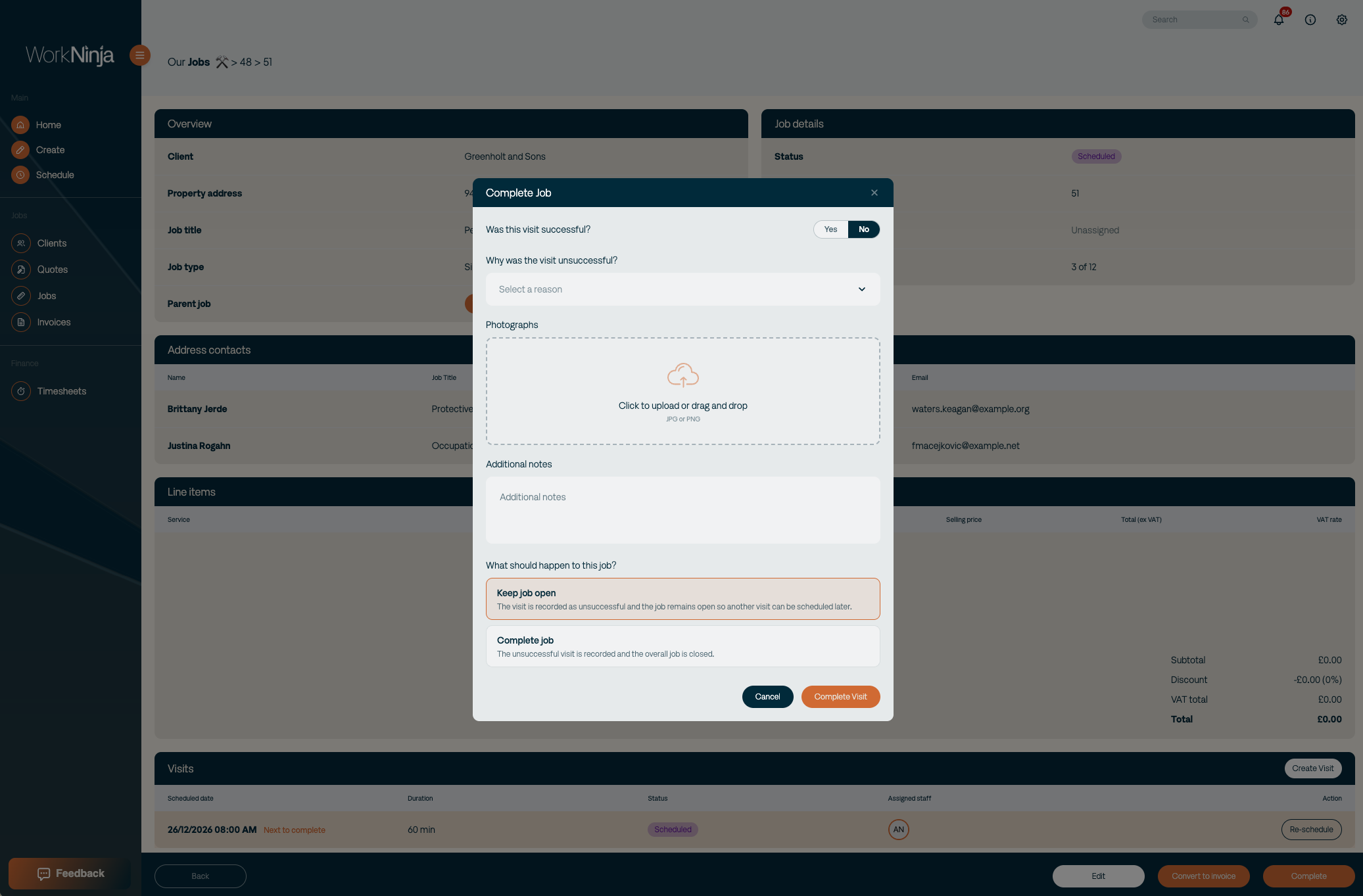
Available reasons include:
Unable to access site
Customer contact unavailable
Customer cancelled
Customer refused work
Parts or materials required
Unable to diagnose or resolve the issue
Unsafe to proceed
Weather or site conditions
Other
3. Add Photos and Notes
When recording an unsuccessful visit, you can also upload supporting information.
This includes:
Photos
Add photographs that help explain why the work couldn't be completed.
Additional Notes
Provide further details about what happened during the visit and any follow-up work that may be required.
This information helps your office team understand why the appointment was unsuccessful.
4. Keep a Job Open After an Unsuccessful Visit
If you mark the final visit of a job as unsuccessful, WorkNinja will ask whether you'd like to:
Keep Job Open
Complete Job
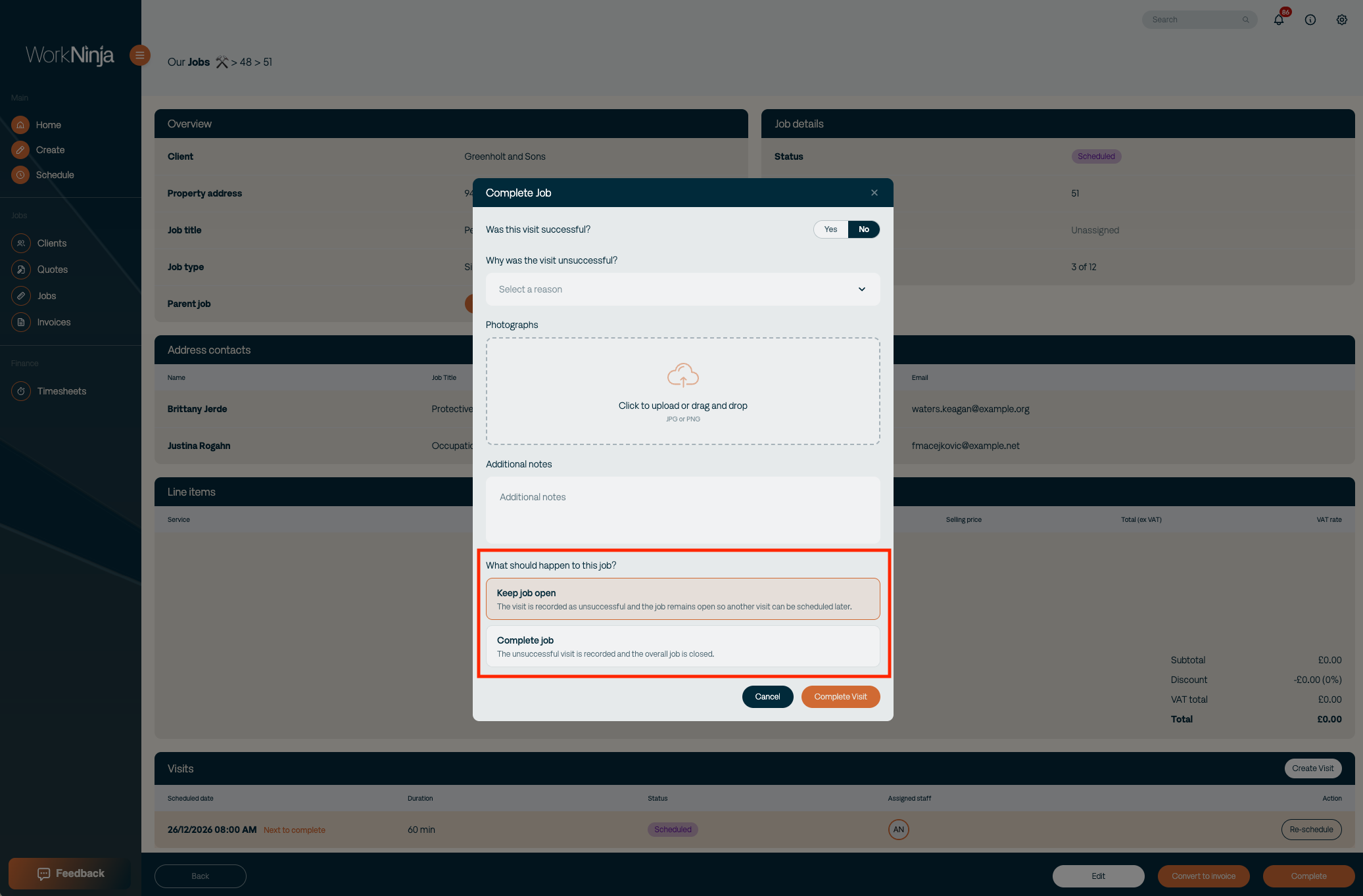
Keep Job Open
Choose this option when additional work or another appointment is required.
The job will remain open, allowing your office team to create and schedule another visit.
Complete Job
Choose this option if no further work is required and you want to close the job, even though the final visit was unsuccessful.
For example, if a customer has cancelled the work entirely, you may decide that the job should be closed.
5. Schedule a Follow-Up Visit
If you decide to keep the job open:
Open the relevant job from your dashboard.
Scroll to the Visits table.
Click Create Visit.
Locate the new visit in the table.
Click Schedule Now to arrange another appointment.
This allows you to retain the original visit history while organising any necessary follow-up work.
Was this helpful?
Still need help? Ask the team