How to Add or Manage Payment Cards
WorkNinja requires an active payment method to collect subscription payments. Administrators can add and manage payment cards from the Plans & Billing section.
Accessing Your Payment Methods
Go to:
Settings → Plans & Billing
Locate the payment method section of the page.
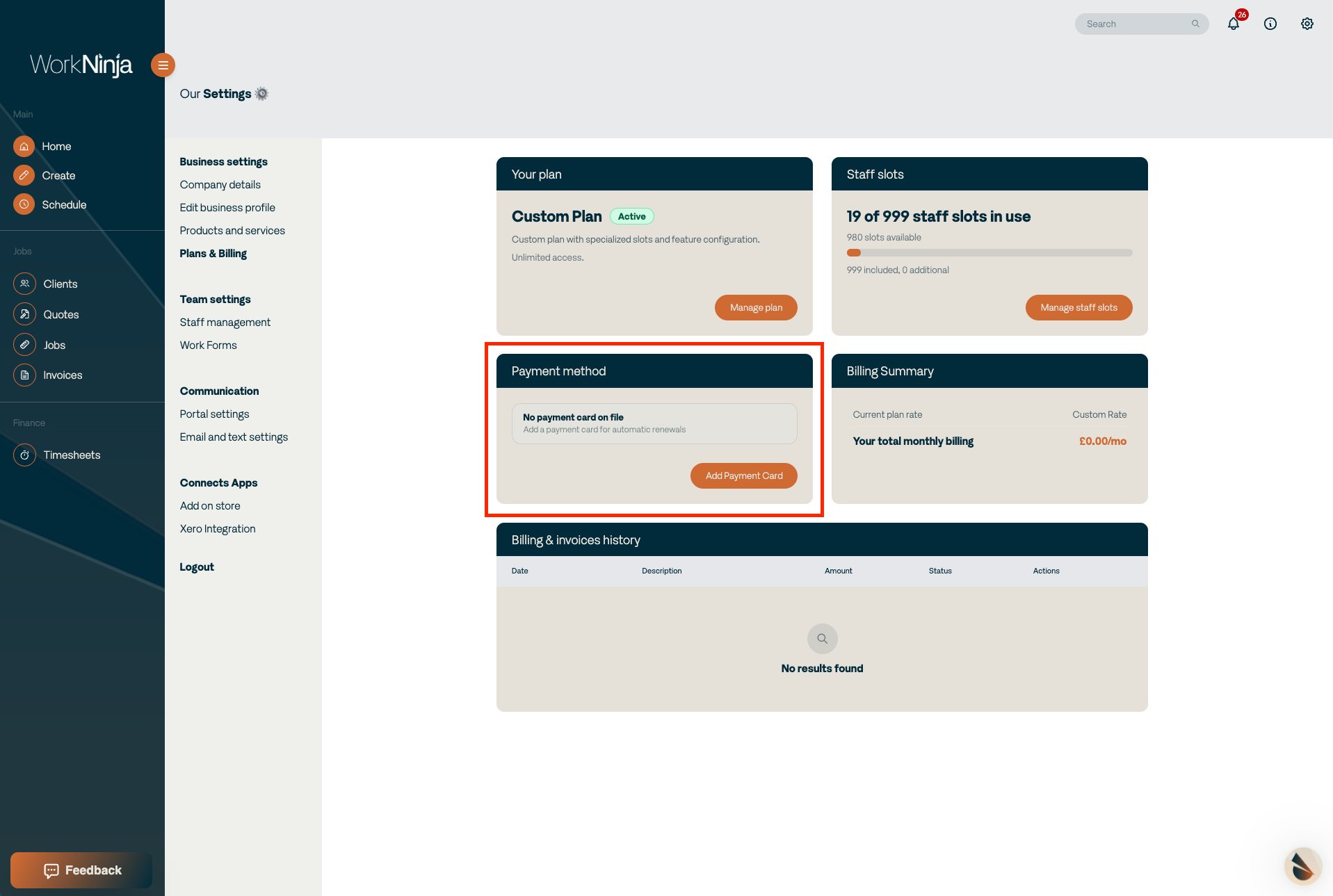
Your existing payment cards will be displayed here.
Adding a New Payment Card
Select Add Payment Card.
[Screenshot: Add Payment Card button highlighted]
A window will appear asking you to enter the details for the new payment card.
Complete the required information and save the card.
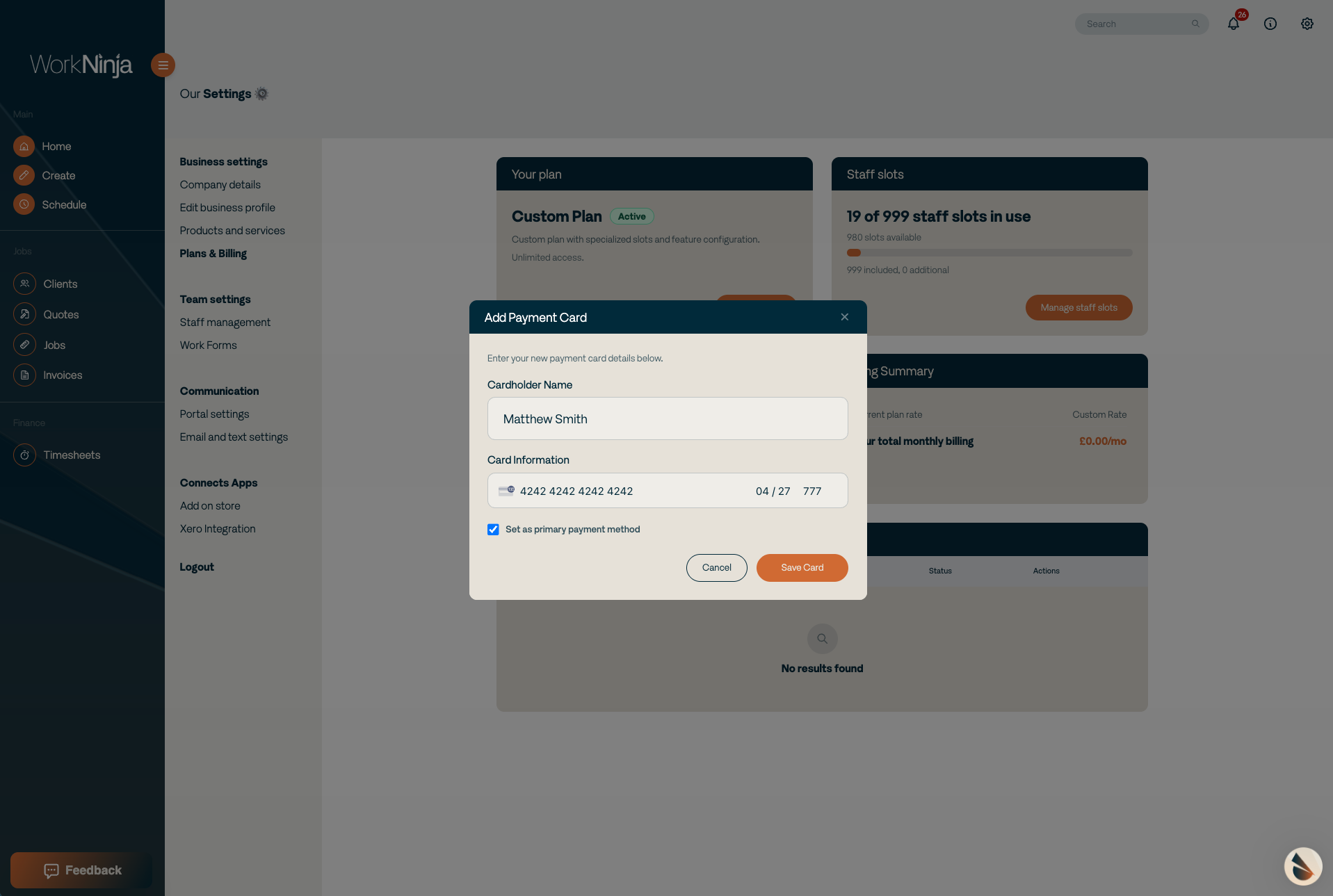
The card will then become available as a payment method against your WorkNinja subscription.
Setting a Primary Payment Card
Your subscription must have one primary payment card active at all times.
If you have more than one payment card stored, you can choose which one should be used as the primary payment method.
Make sure the primary card remains valid to avoid problems with future subscription payments.
Removing a Payment Card
Payment cards that are no longer required can be deleted from your account.
However, your subscription must always retain an active primary payment method.
If you want to remove your current primary card, add or select another primary payment card first.
Important
Always keep your primary payment card details up to date.
An expired or invalid payment method may prevent WorkNinja from successfully processing your subscription payment.
Was this helpful?
Still need help? Ask the team