How to Create and Manage Recurring Jobs
Learn how recurring jobs work in WorkNinja, including creating recurring schedules, managing parent job templates and viewing previous and upcoming work.
Recurring jobs are ideal for businesses that carry out repeat work for their customers, such as regular maintenance, pest control contracts, cleaning or scheduled inspections.
WorkNinja allows you to create a recurring job template that controls how future jobs are created and scheduled.
1. What Is a Recurring Job?
When you create a recurring job, WorkNinja creates a Parent Job Template.
This template contains the information and scheduling rules that future jobs within the recurring series will follow.
For example, you might create a recurring maintenance job that:
Repeats every month.
Takes place on a Wednesday.
Starts at 8:00 am.
Is assigned to a particular team member.
Rather than manually creating each repeat appointment, WorkNinja uses the parent template to generate the next job in the series when the current job is completed.
2. Create a Recurring Job
To create a recurring job:
Navigate to Create Job.
Select Recurring Job.
Enter the required job information.
Configure the recurrence rules, including how frequently the job should repeat.
Enter the relevant duration, date and time.
Assign your preferred team members.
Complete the remaining required fields.
Use Schedule Now to schedule the visit.
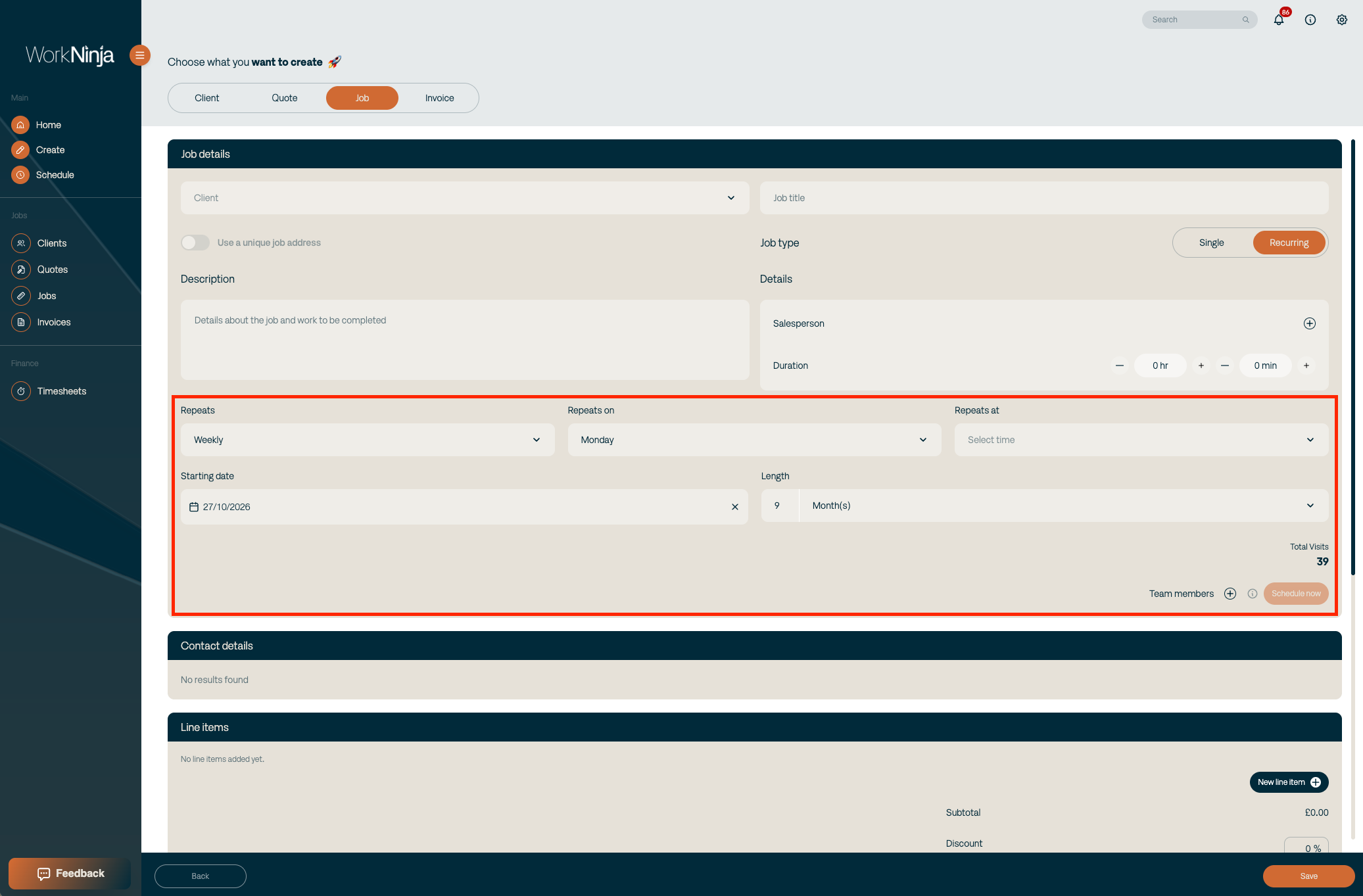
Once created, WorkNinja will establish the parent job template and associated job schedule.
3. Understanding the Parent Job Template
The parent job template is the central location for managing your recurring work.
It contains the instructions that determine how future jobs in the series are created.
From the parent job page, you can view information such as:
The recurring schedule and frequency.
How many jobs have been completed.
Progress through the recurring series.
When the next job is scheduled.
All jobs linked to the recurring series.
All visits associated with the recurring jobs.
Reports from previous work.
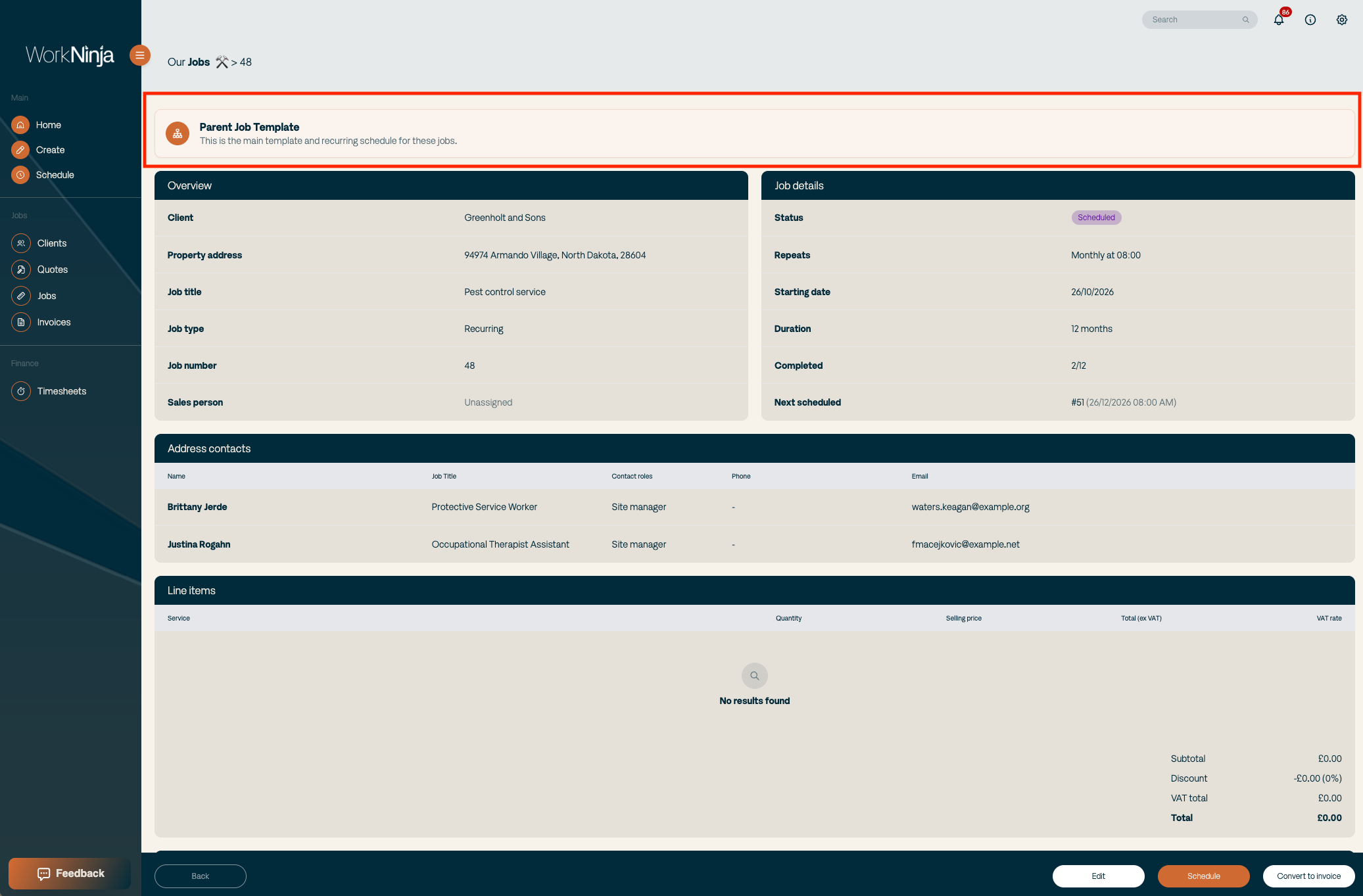
For example, if a recurring series contains four jobs and you've completed the first one, you'll be able to see your progress through the series.
4. How Future Recurring Jobs Are Created
WorkNinja generates the next job in the recurring series when the current job is completed.
The newly generated job follows the settings defined in the parent job template.
This means you don't need to manually create each future job.
5. View Previous Jobs, Visits and Reports
Open the parent job template to view all work associated with the recurring series.
From here, you can access:
Jobs
A list of the individual jobs created as part of the recurring schedule.
Visits
Visits associated with the recurring series, allowing you to review scheduled and historical appointments.
Reports
Completed work reports from jobs within the series, making it easier to review previous work carried out for the customer.
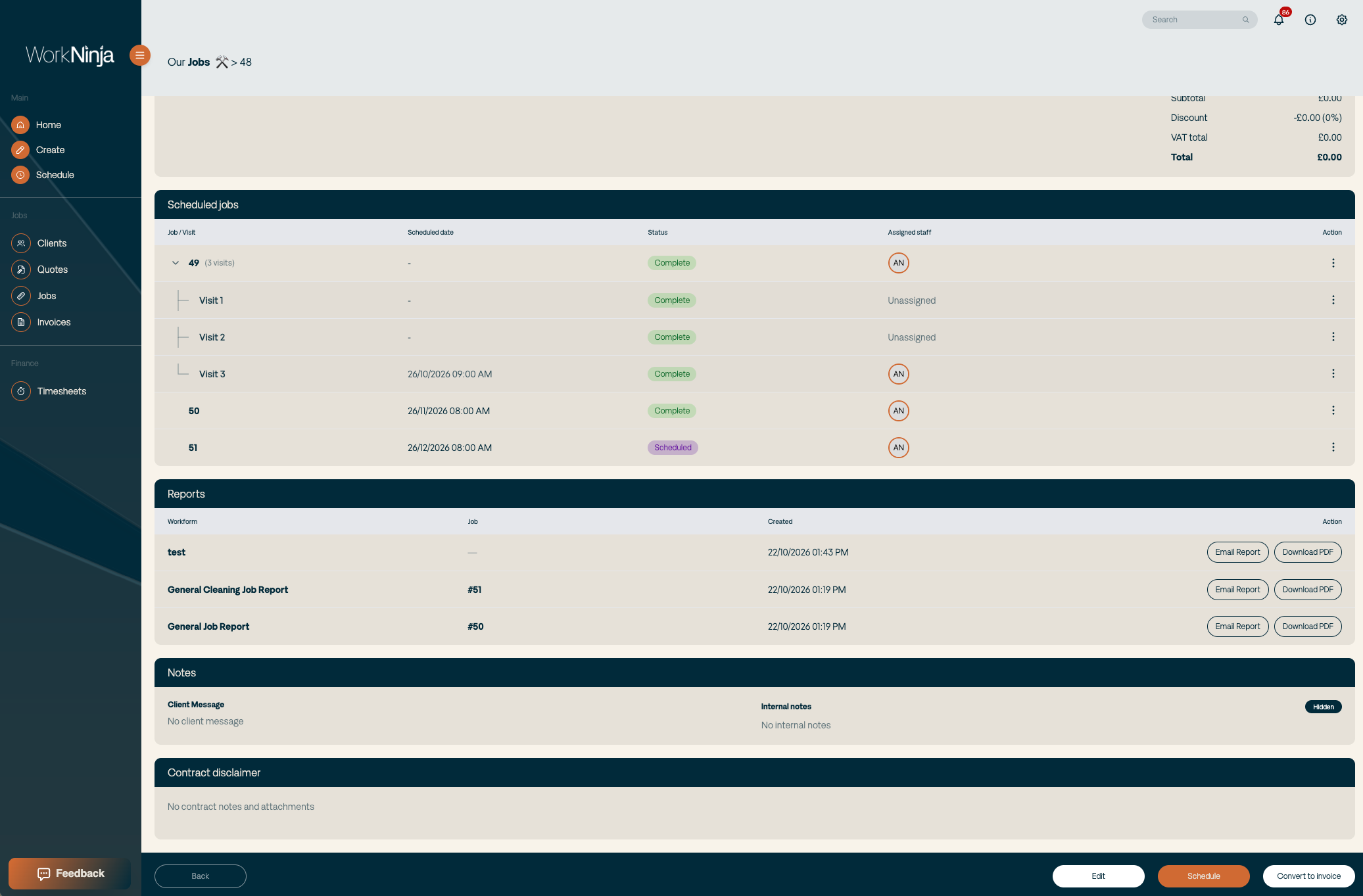
You can navigate directly to an individual job or visit to see more information.
6. Edit a Recurring Job Template
If the recurring schedule needs to change, you can edit the parent job template.
For example, you might need to change:
How frequently the work repeats.
The preferred day or time.
The allocated duration.
The assigned team members.
Other details used by future jobs.
To make changes:
Open the relevant Parent Job Template.
Select Edit.
Update the relevant settings.
Save your changes.
Important: Editing the parent template does not change jobs that have already been scheduled or completed.
The updated settings apply to future jobs generated from the template when the current job is completed.
7. Manage Individual Jobs and Visits
Each individual job within a recurring series can still be managed in the same way as a standard job.
You can:
View its scheduled visits.
Create additional visits.
Reschedule appointments.
Change assigned team members.
Access completed reports.
View its position within the recurring schedule.
This gives you the flexibility to manage individual appointments while maintaining the overall recurring contract or schedule.
Was this helpful?
Still need help? Ask the team