How to Customise Your Business Profile and Documents
Learn how to customise your WorkNinja business profile, upload your company logo and personalise the appearance of your quotes, invoices and work forms.
WorkNinja allows you to apply your own branding to customer-facing documents, helping you maintain a consistent, professional appearance.
1. Access Your Business Profile
To customise your business profile:
Log in to your WorkNinja dashboard.
Navigate to Settings.
Select Edit Business Profile.
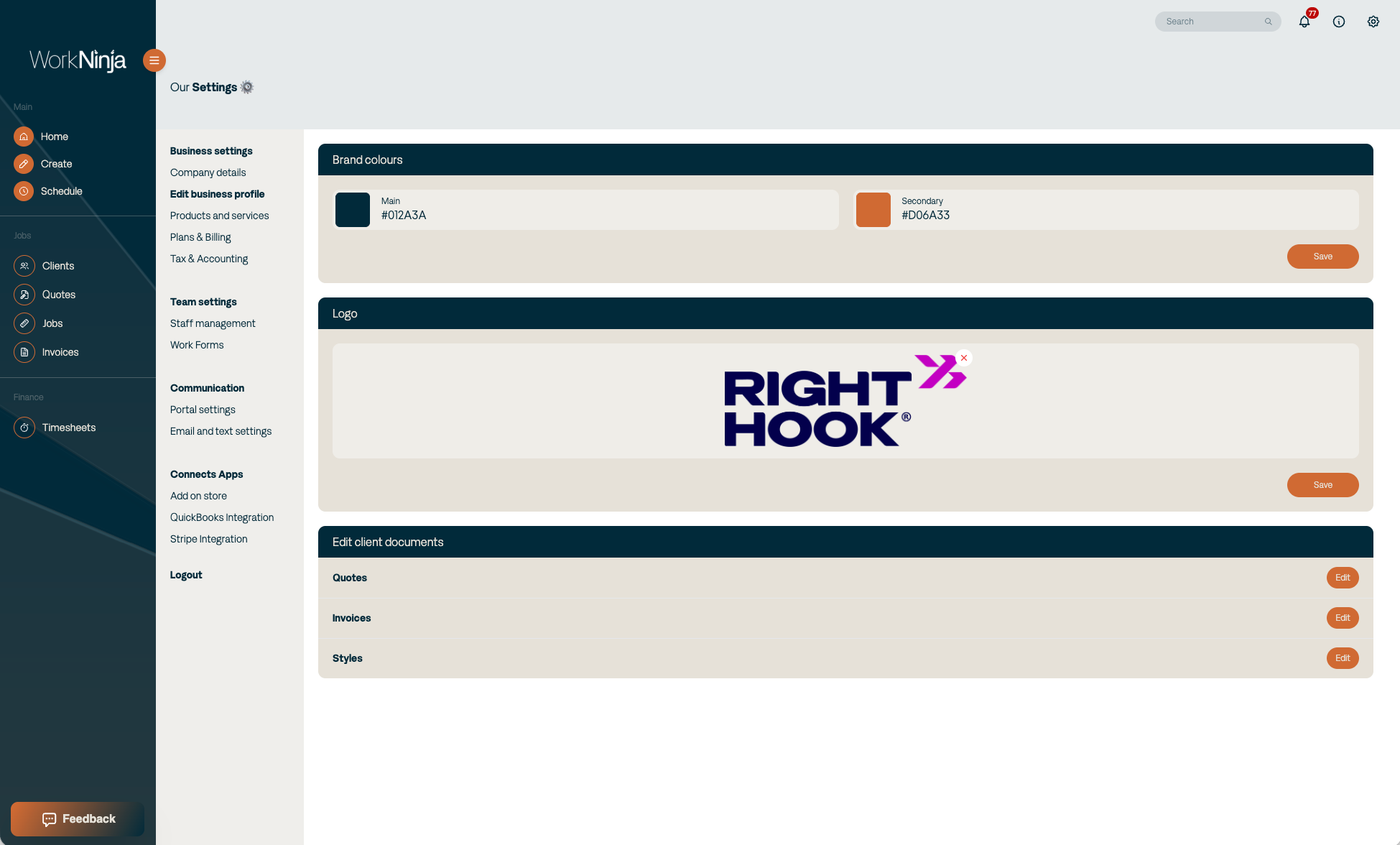
From here, you can manage your brand colours, company logo and customer document settings.
2. Set Your Brand Colours
You can personalise the appearance of your documents by selecting two brand colours:
Main Colour: Your primary brand colour.
Secondary Colour: Your supporting brand colour.
Enter your preferred colours using their HEX codes.
For example:
Main Colour:
#2563EBSecondary Colour:
#1E293B
These colours will influence the appearance of your branded documents.
3. Upload Your Company Logo
You can upload your business logo to display across your customer-facing documents.
Your uploaded logo will replace the default WorkNinja branding on documents such as:
Quotes
Invoices
Work forms
Using your company logo helps ensure documents sent to customers reflect your business's identity.
4. Customise Your Client Documents
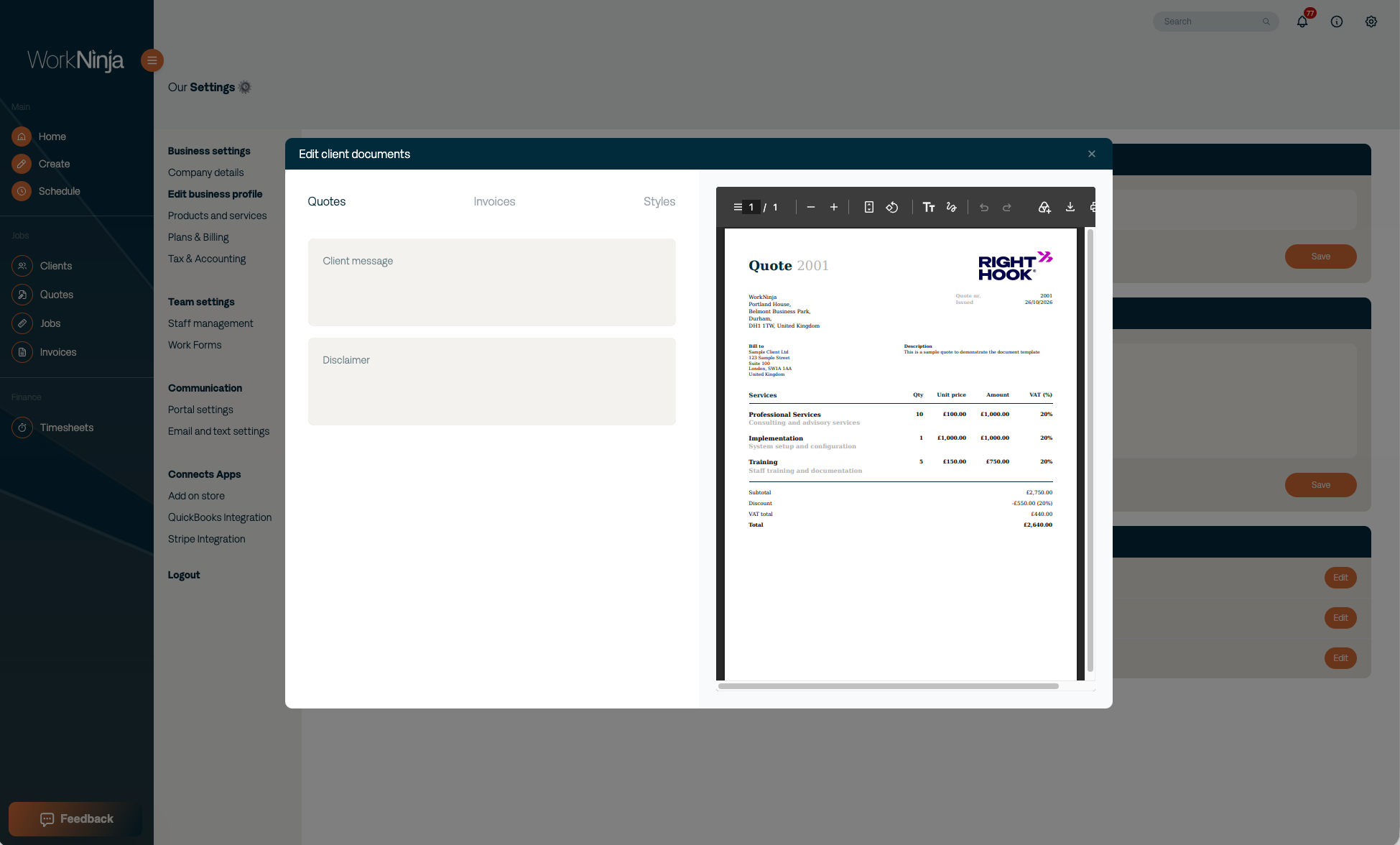
At the bottom of the Edit Business Profile page, select Edit Client Documents.
This section allows you to customise your quotes, invoices and document styling.
Customising Quotes
Select Edit Quotes to configure the information displayed on your quotes.
You can add:
Client Message: A message that appears on your quotes, such as a thank-you note or additional information for customers.
Disclaimer: Any relevant terms, conditions or important information relating to your quotation.
For example, you may wish to include details about quotation validity, additional charges or payment instructions.
Customising Invoices
Within the invoice settings, you can configure your preferred payment terms and add a message to customers.
Default Payment Terms
Choose from the following options:
Due on Receipt: Payment is due immediately.
Net 7: Payment is due within 7 days.
Net 14: Payment is due within 14 days.
Net 30: Payment is due within 30 days.
Net 60: Payment is due within 60 days.
These settings determine the default payment terms used when creating invoices.
Client Message
You can also add a default message that appears on your invoices.
This is useful for including:
Bank details for BACS payments
Payment instructions
Customer service contact details
Thank-you messages
For example:
"Thank you for your business. Please make payment using the bank details provided, quoting your invoice number as the payment reference."
5. Customise Your Document Styling
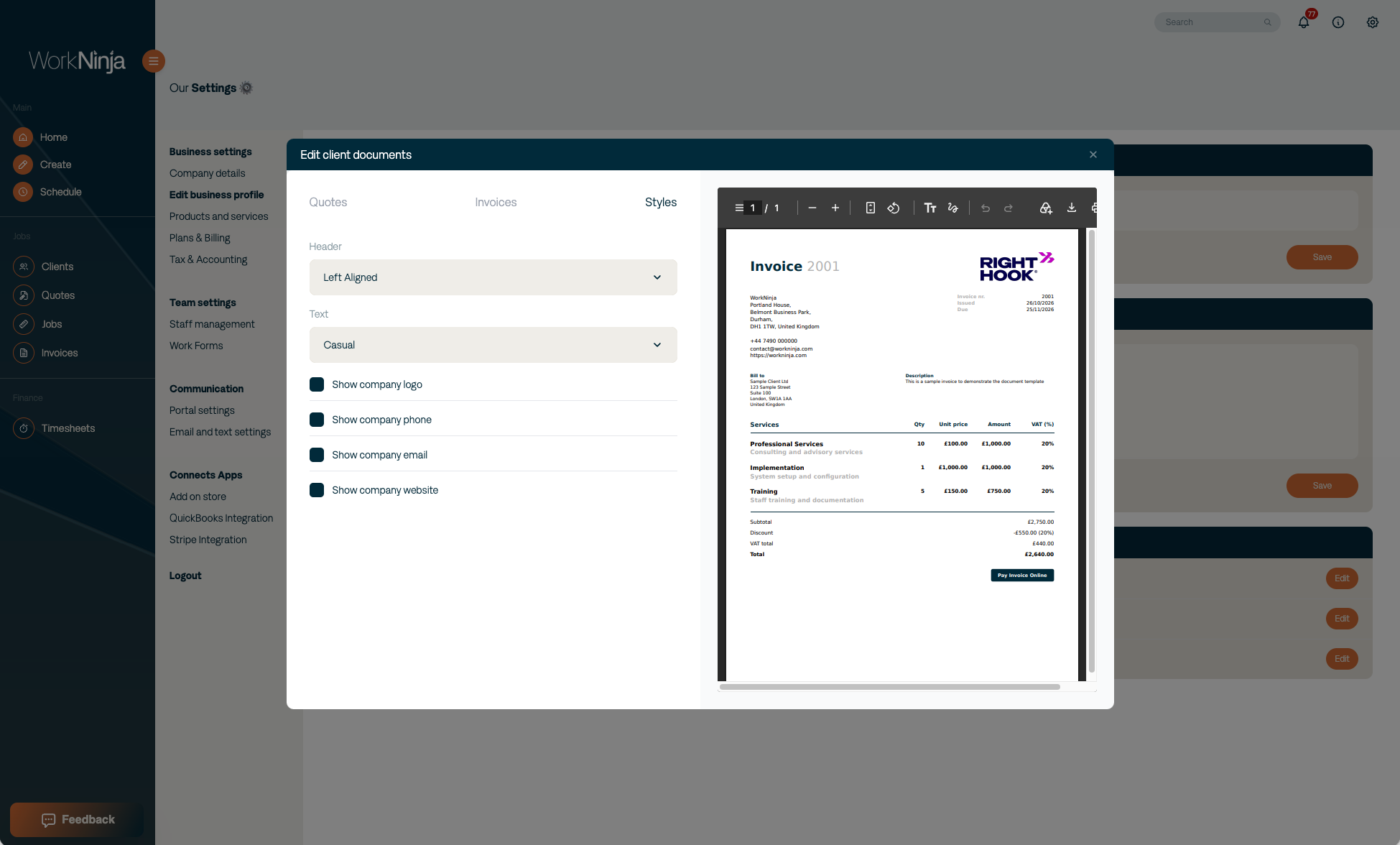
Under Styles, you can customise how your customer-facing documents look.
Logo and Title Alignment
Choose how your company logo and document title are positioned:
Left aligned
Centre aligned
Right aligned
Font Styles
WorkNinja offers three different font styles:
Professional: A clean, business-focused appearance.
Casual: A more relaxed and approachable style.
Minimal: A simple, modern appearance.
Choose whichever style best suits your business's branding.
Company Information Display
You can also control which business details appear on your documents.
Enable or disable the following options:
Show Company Logo
Show Company Phone
Show Company Email
Show Company Website
When enabled, WorkNinja uses the information you've already entered within your company settings.
If any of these details are missing or incorrect, you can update them under Settings → Company Details.
6. Keeping Your Documents Consistent
Once you've configured your branding and document settings, WorkNinja uses these preferences when generating the relevant customer-facing documents.
We recommend checking your company details, branding and payment information before sending your first quote or invoice.
Was this helpful?
Still need help? Ask the team