How to Reschedule, Reassign or Unschedule a Visit
Learn how to change the date, time, duration or assigned team members of a job visit in WorkNinja.
Plans can change throughout the working day. WorkNinja makes it easy to adjust your team's schedule using the calendar or individual job settings.
1. Reschedule a Visit Using the Calendar
To move a scheduled visit:
Navigate to Schedule.
Locate the visit you wish to change.
Click and drag the visit card.
Move it to the new date, time or team member.
Drop the card into the desired calendar position.
The visit will be moved to its new position on the calendar.
2. Change a Visit's Duration
You can change how long a scheduled visit lasts directly from the calendar.
Locate the visit card on the scheduler.
Move to the right-hand edge of the card.
Drag the edge to extend or reduce the visit duration.
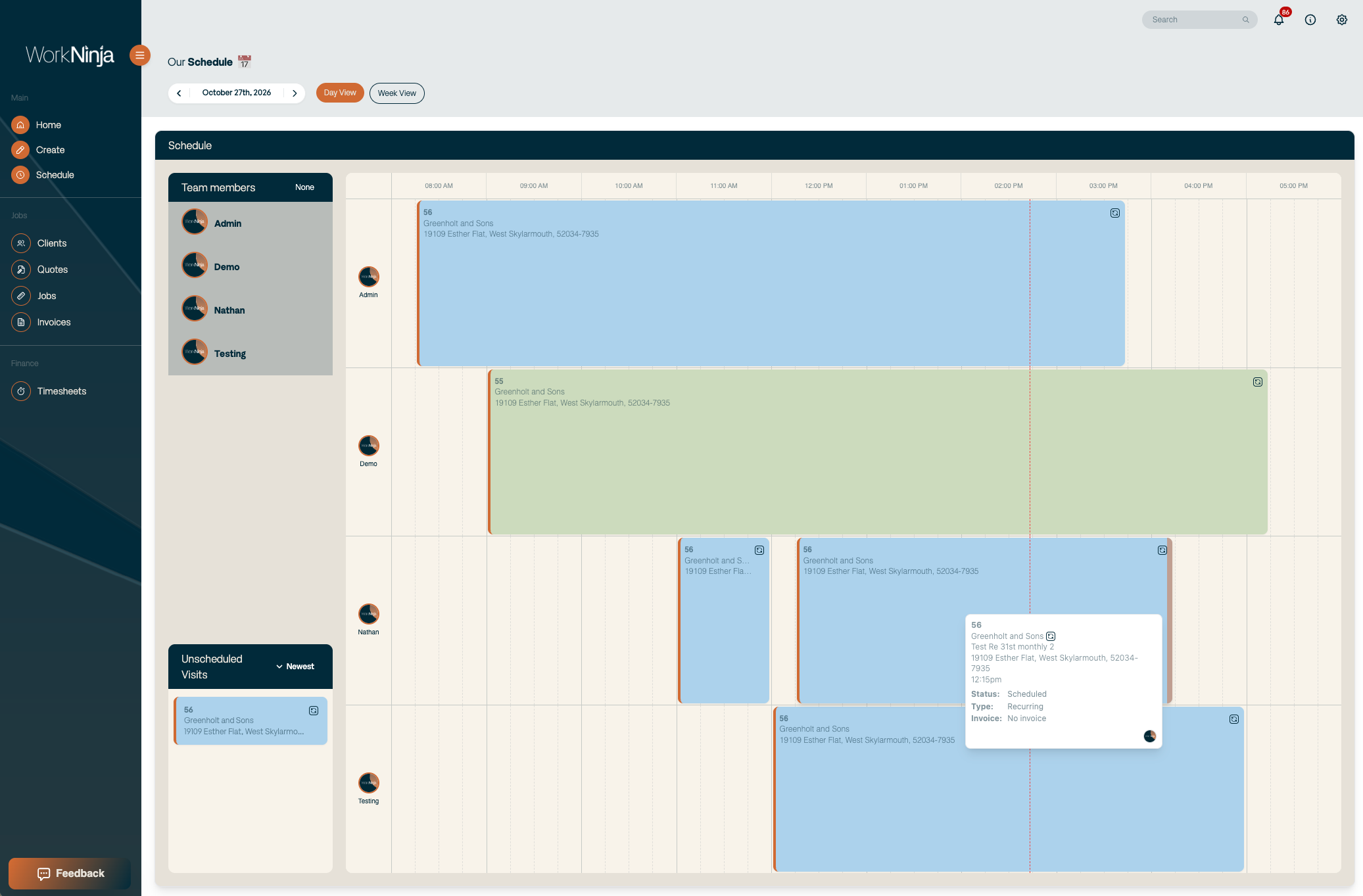
This is useful when a job is expected to take longer or shorter than originally planned.
3. Reassign a Visit to Another Team Member
There are two ways to assign or reassign visits.
Option 1: Using the Scheduler
Drag the visit card from one technician's calendar to another technician's calendar.
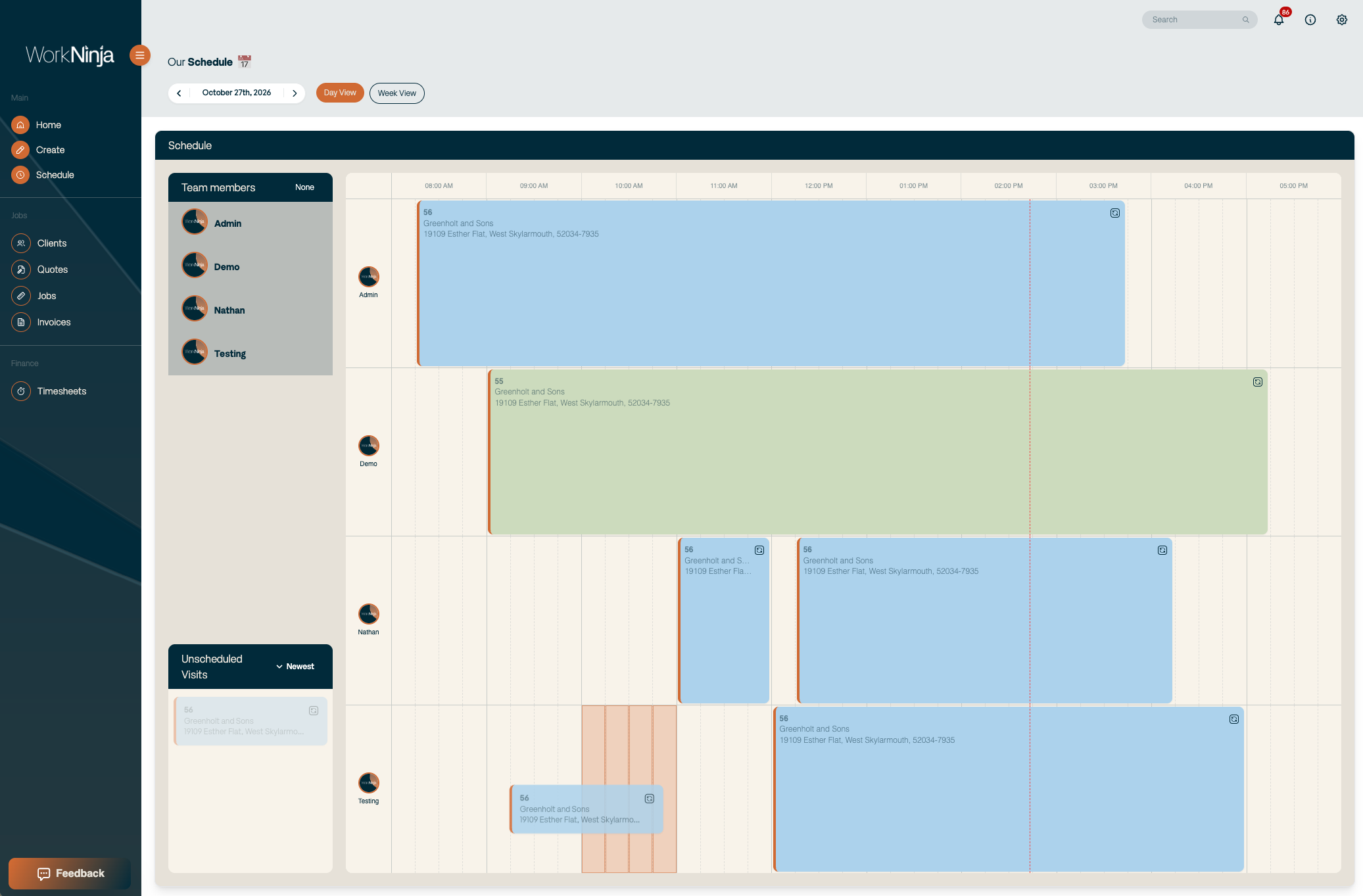
Option 2: Editing the Job
Open the relevant job.
Click Edit.
Find the Team Members selection.
Choose the team members you wish to assign.
Save your changes.
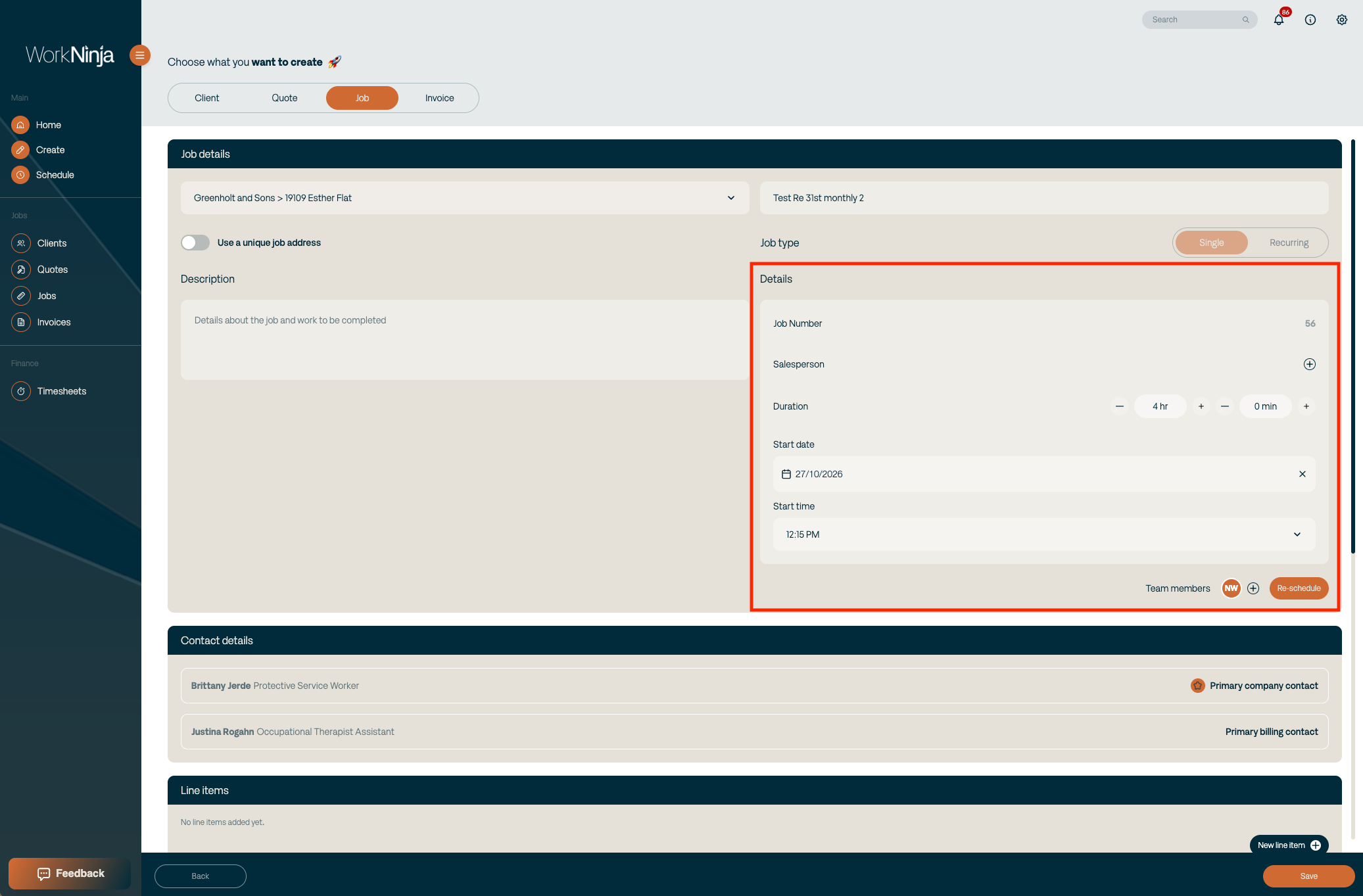
You can assign multiple team members to a job where required.
4. Reschedule from the Job Page
You can also reschedule a visit without first locating it on the calendar.
Navigate to View Job.
Scroll to the Visits table.
Locate the scheduled visit.
Click Reschedule.
Adjust the appointment using the scheduler.
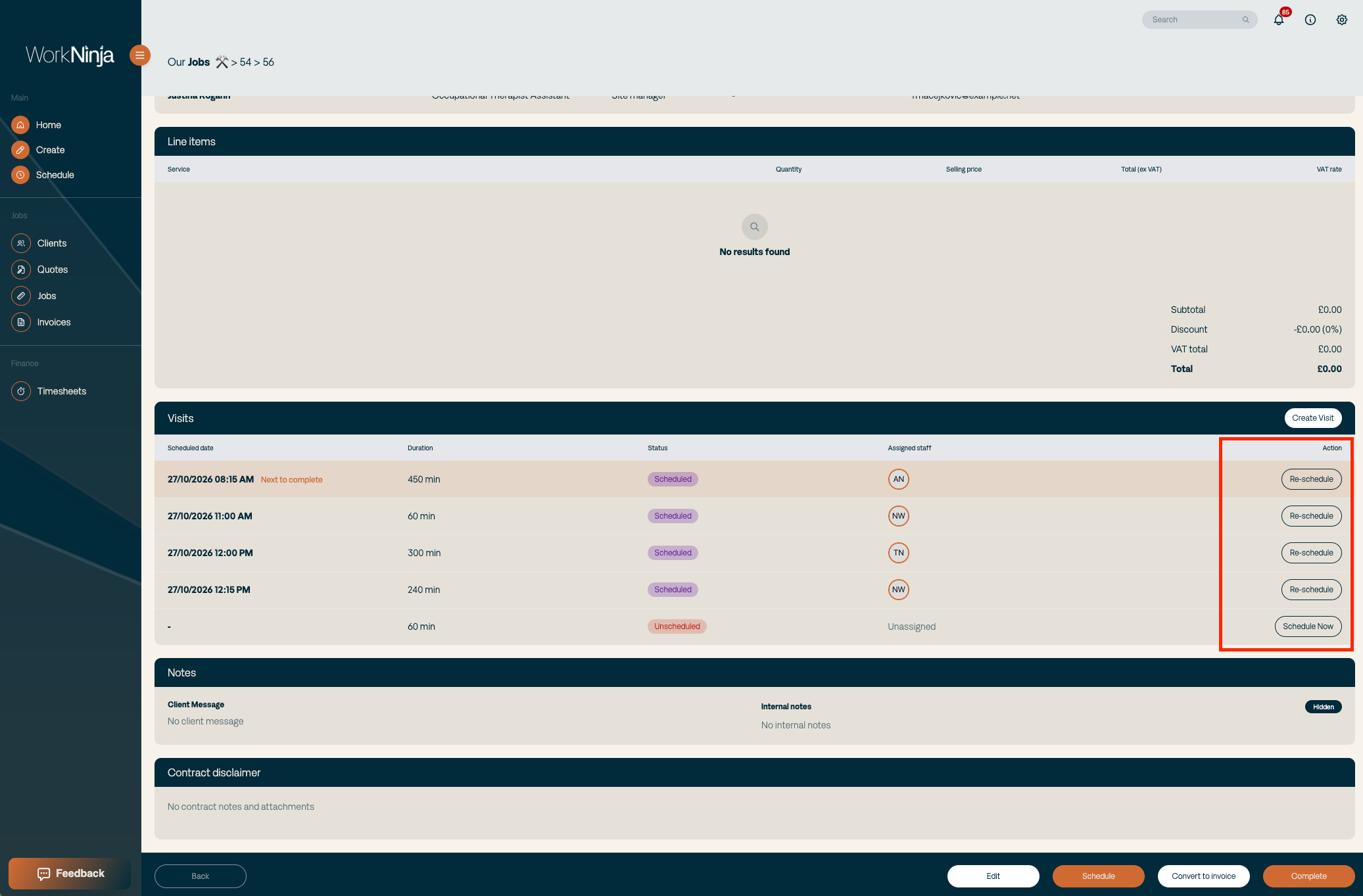
Alternatively, use Edit on the job to change the relevant start time, duration or team member information.
5. Unschedule a Visit
If an appointment needs to be removed from the calendar without deleting the visit:
Open Schedule.
Find the scheduled visit.
Drag the visit card into the Unscheduled Visits area on the left-hand side.
The visit will be removed from the calendar and returned to the unscheduled list.
You can schedule it again whenever you're ready.
Was this helpful?
Still need help? Ask the team