How to Connect and Use Stripe with WorkNinja
WorkNinja can connect directly with Stripe, allowing your customers to pay invoices online and enabling your team to take card payments while using the WorkNinja app.
Written By Matthew Smith
Last updated About 2 hours ago
Once Stripe is connected, payment options are automatically made available on eligible invoices.
This guide explains how to connect Stripe and how customers and field staff can use it to take payments.
Connecting Your Stripe Account
To connect Stripe, go to:
Settings → Add-ons → Stripe
Select Connect.
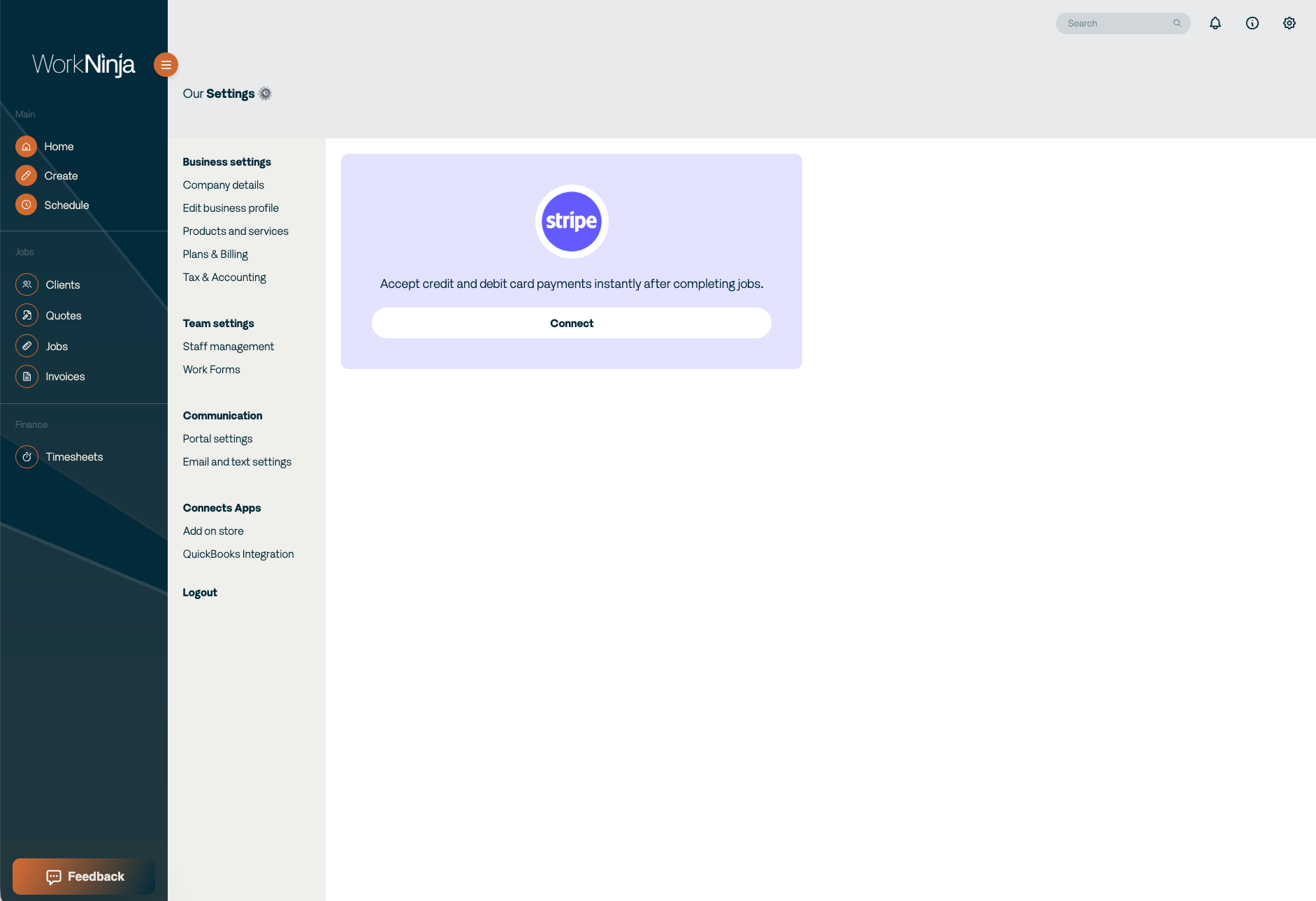
You will then be redirected to Stripe.
From here, select the Stripe account you want to connect to WorkNinja and follow the on-screen instructions.
Select Connect to authorise the integration.
Once the connection has been completed, you will be redirected back to WorkNinja.
WorkNinja will then show that your Stripe account has been successfully connected.
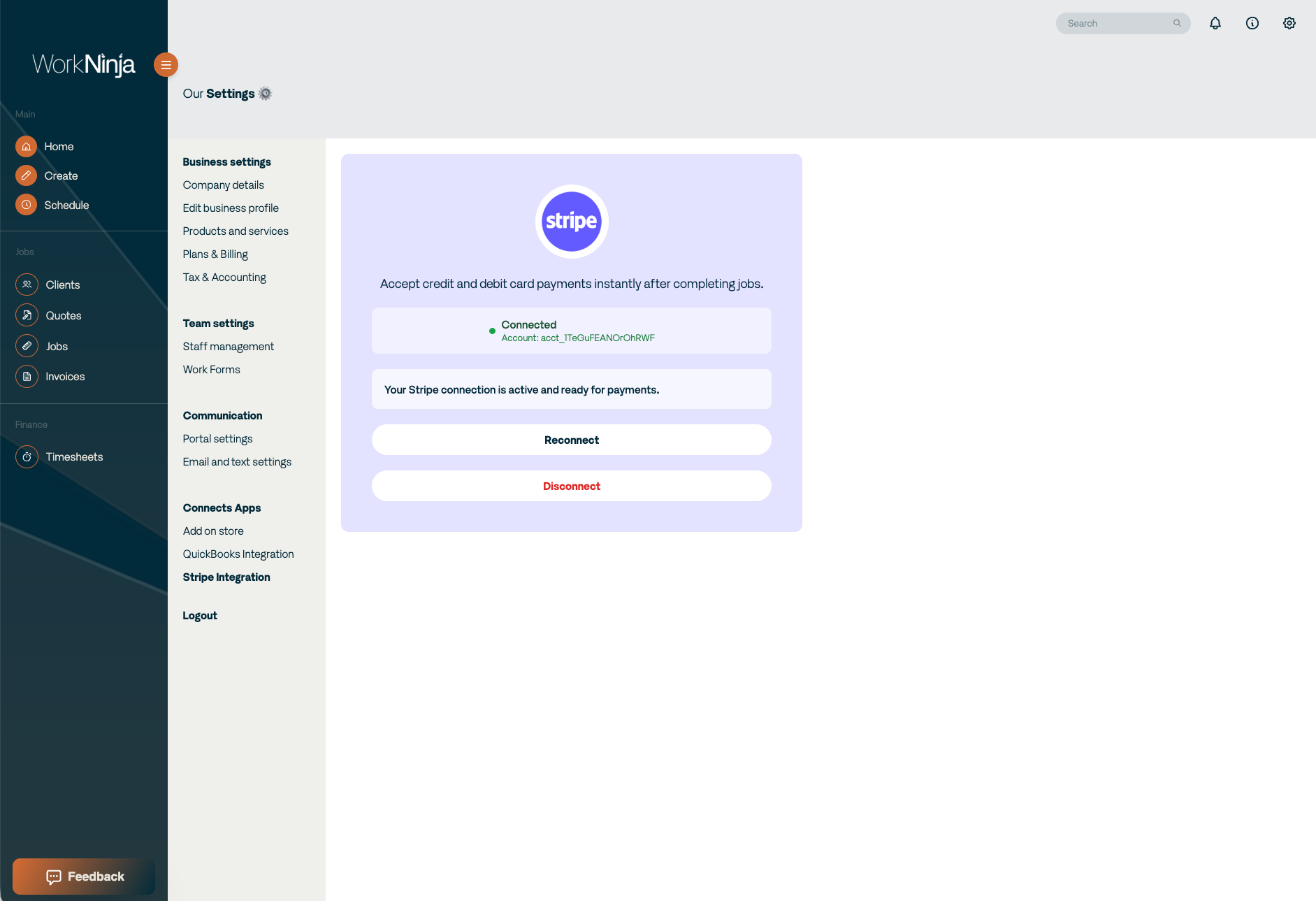
What Happens When Stripe Is Connected?
Once Stripe has been connected, WorkNinja can provide card payment options against your invoices.
There are two main ways an invoice can be paid:
The customer can pay through a payment link included with their invoice.
A member of your team can take a card payment through the WorkNinja app.
This allows you to take payment whether the customer is paying remotely or while a technician is with them.
Customer Payments from an Invoice
When Stripe is connected, invoices generated by WorkNinja will include a payment link.
This link is included with the customer-facing invoice PDF.
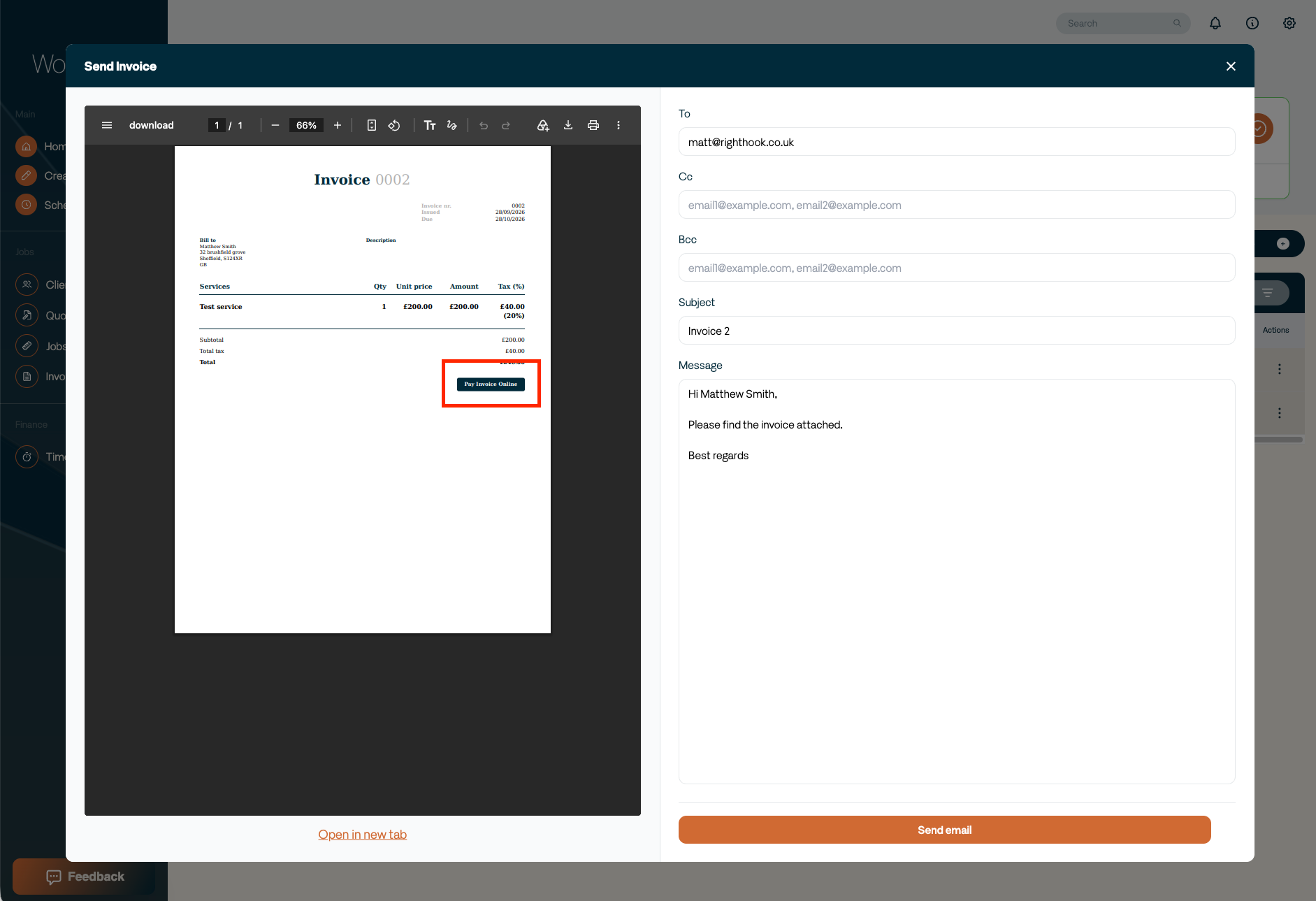
When the customer selects the payment link, they will be taken to a secure Stripe Checkout page.
From here, they can enter their payment details and pay the invoice online.
This means customers can pay their invoice without needing to call your business or provide their card details directly to a member of your team.
Paying an Invoice Online
The process for the customer is:
Open the invoice they have received.
Select the payment link.
The Stripe Checkout page will open.
Enter the required card details.
Complete the payment.
Stripe securely handles the customer's card payment details.
Taking Card Payments Through the WorkNinja App
If Stripe has been connected, your team can also take payments directly through the WorkNinja app.
Open the relevant invoice within the app.
At the bottom of the invoice, a Pay by Card button will be available.
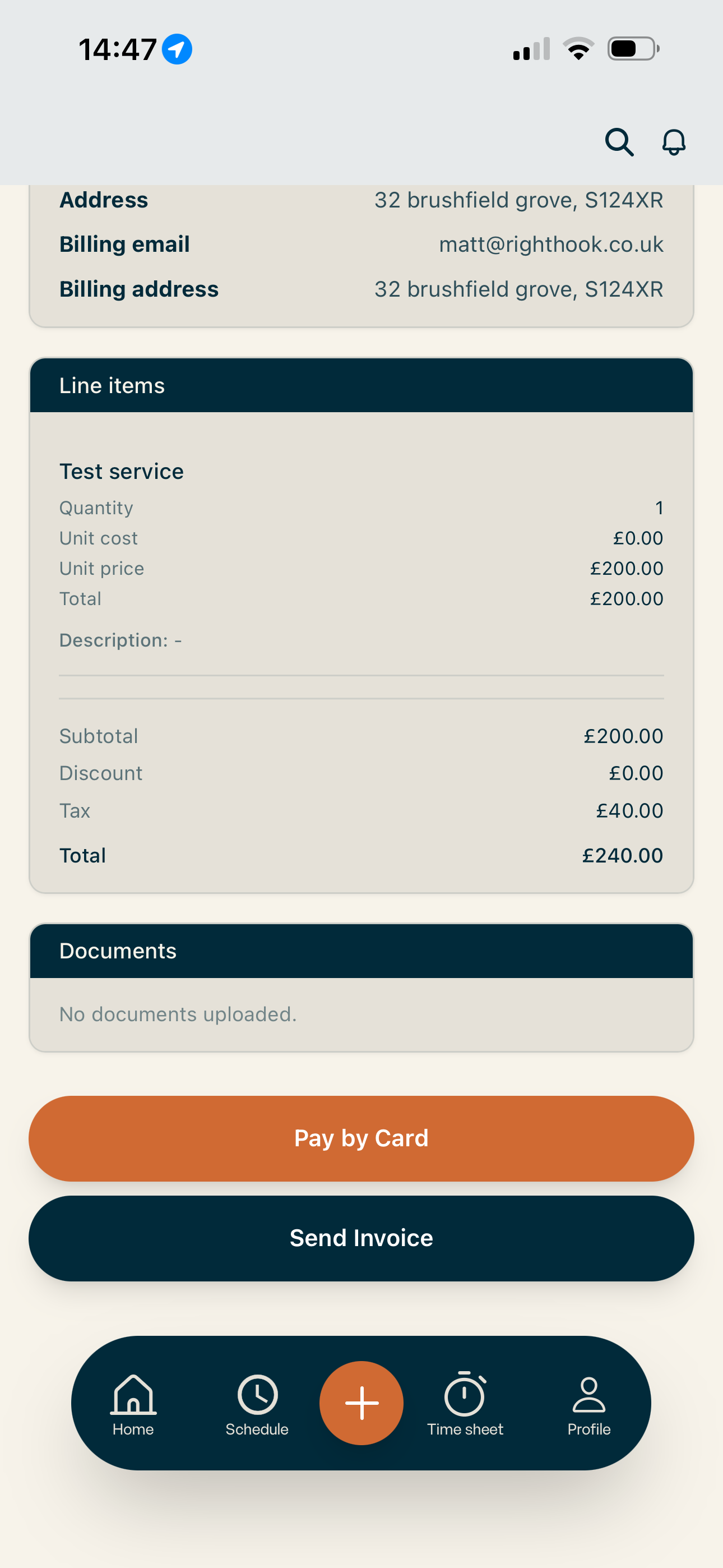
Select Pay by Card.
A payment area will open where the customer's card details can be entered and the payment can be processed.
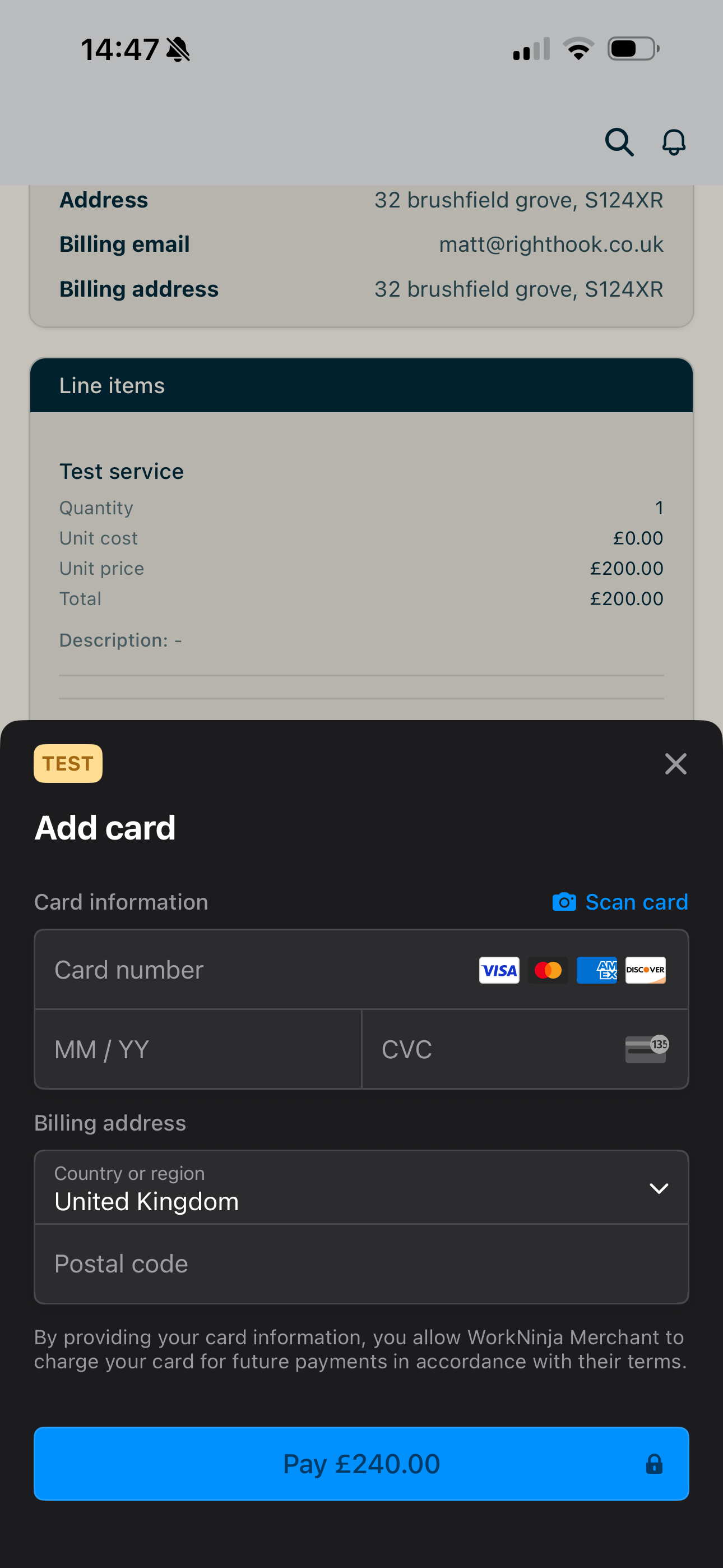
This can be particularly useful when a technician has completed work on site and the customer wants to pay immediately.
Taking Payment While on Site
For example, once a job has been completed:
Open the customer's invoice in the WorkNinja app.
Select Pay by Card.
Enter the customer's required payment information.
Process the payment through Stripe.
This allows your team to take payment before leaving the customer without needing a separate card payment system.
Important
Stripe must be successfully connected before card payment options become available on WorkNinja invoices.
You can check your connection at:
Settings → Add-ons → Stripe
Once connected:
Generated invoices can contain an online payment link.
Customers can pay through Stripe Checkout.
Staff can access Pay by Card from invoices within the WorkNinja app.
Successful Stripe payments can update the associated invoice status in WorkNinja.
Before taking live payments, it is worth checking that the correct Stripe account has been connected to your WorkNinja business.